
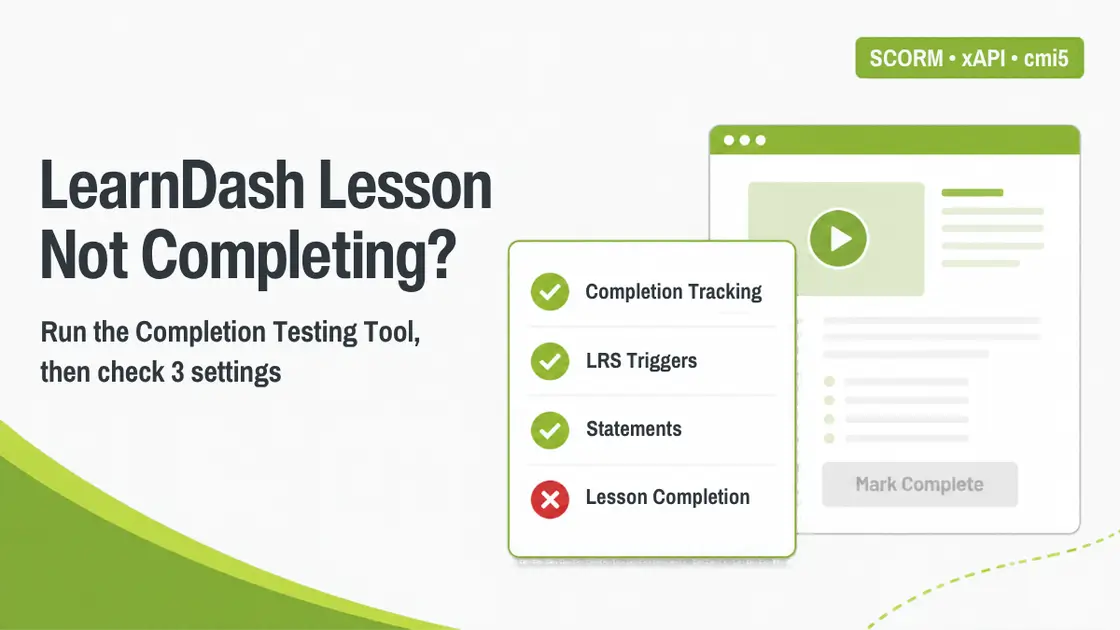
Your learner finishes lesson 1, moves on to lesson 2, and works through the xAPI module or quiz. The content says “Module complete” or “Passed”. But the lesson still says In Progress, the course is stuck at 50%, and lesson 3 won’t open.
From the learner’s side, they did everything right. From your side, something between the content and LearnDash didn’t hand the completion on. This guide shows how to find that something in a couple of minutes with GrassBlade’s Completion Testing Tool, then walks through the four causes behind most of these tickets. We set each one up on a demo site with a test learner, Jordan, so every screenshot below is a real result.
How a completion reaches LearnDash
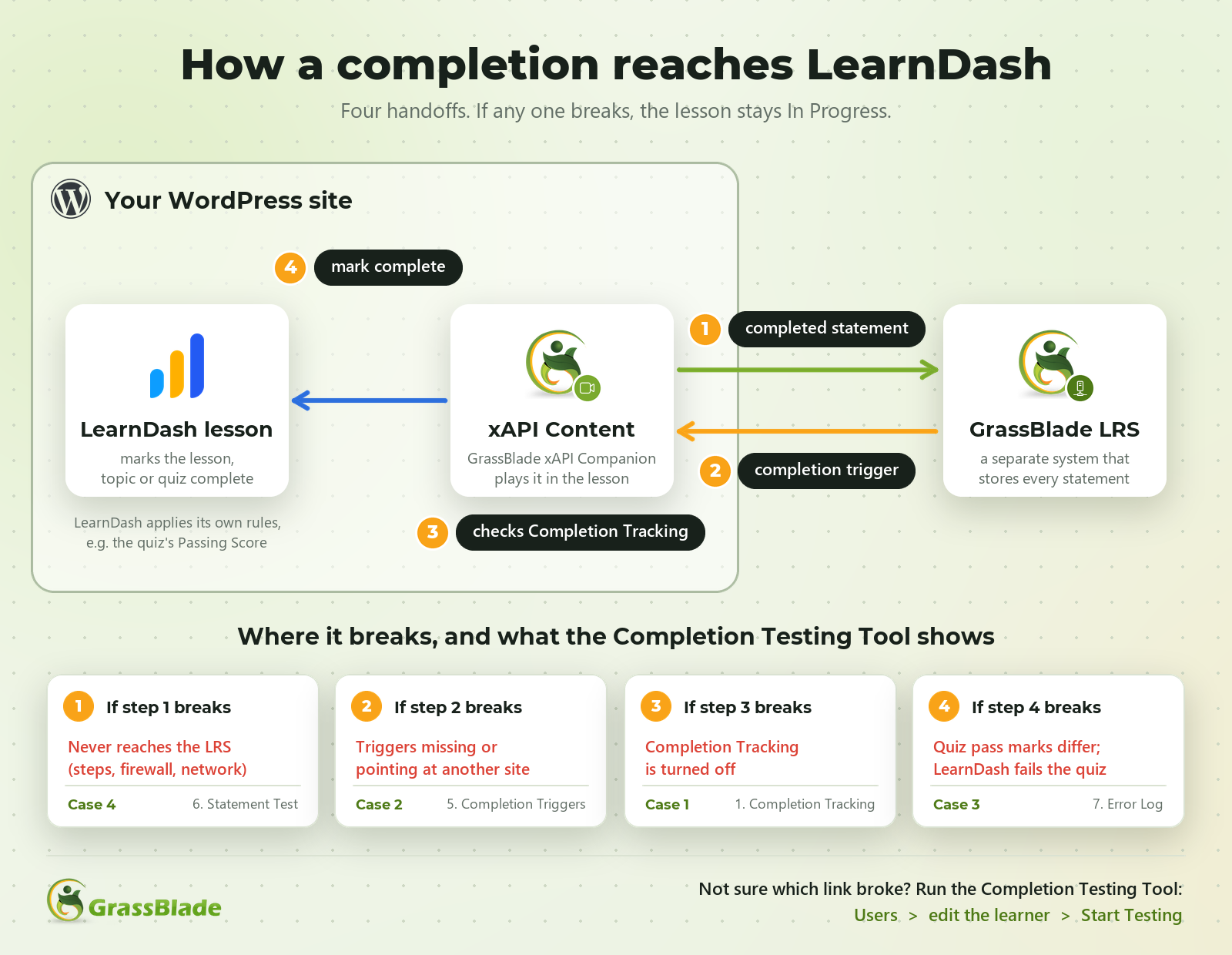
Two systems are involved. Your WordPress site runs LearnDash and GrassBlade xAPI Companion, which plays the xAPI, SCORM or cmi5 content inside the lesson. GrassBlade LRS is separate: it stores every statement the content sends. A completion travels like this:
- The content, running in the lesson on WordPress, sends a “completed” or “passed” statement to GrassBlade LRS when its own rule is met.
- GrassBlade LRS stores it, and a completion trigger sends it back to your WordPress site.
- GrassBlade xAPI Companion checks the content’s settings, such as Completion Tracking.
- LearnDash marks the lesson, topic or quiz complete.
If any link breaks, the learner sees the content finish and the lesson stay open.
Start here: run the Completion Testing Tool
Before changing settings, test the setup for the learner who reported the problem. The Completion Testing Tool runs the checks a support engineer would otherwise do by hand.
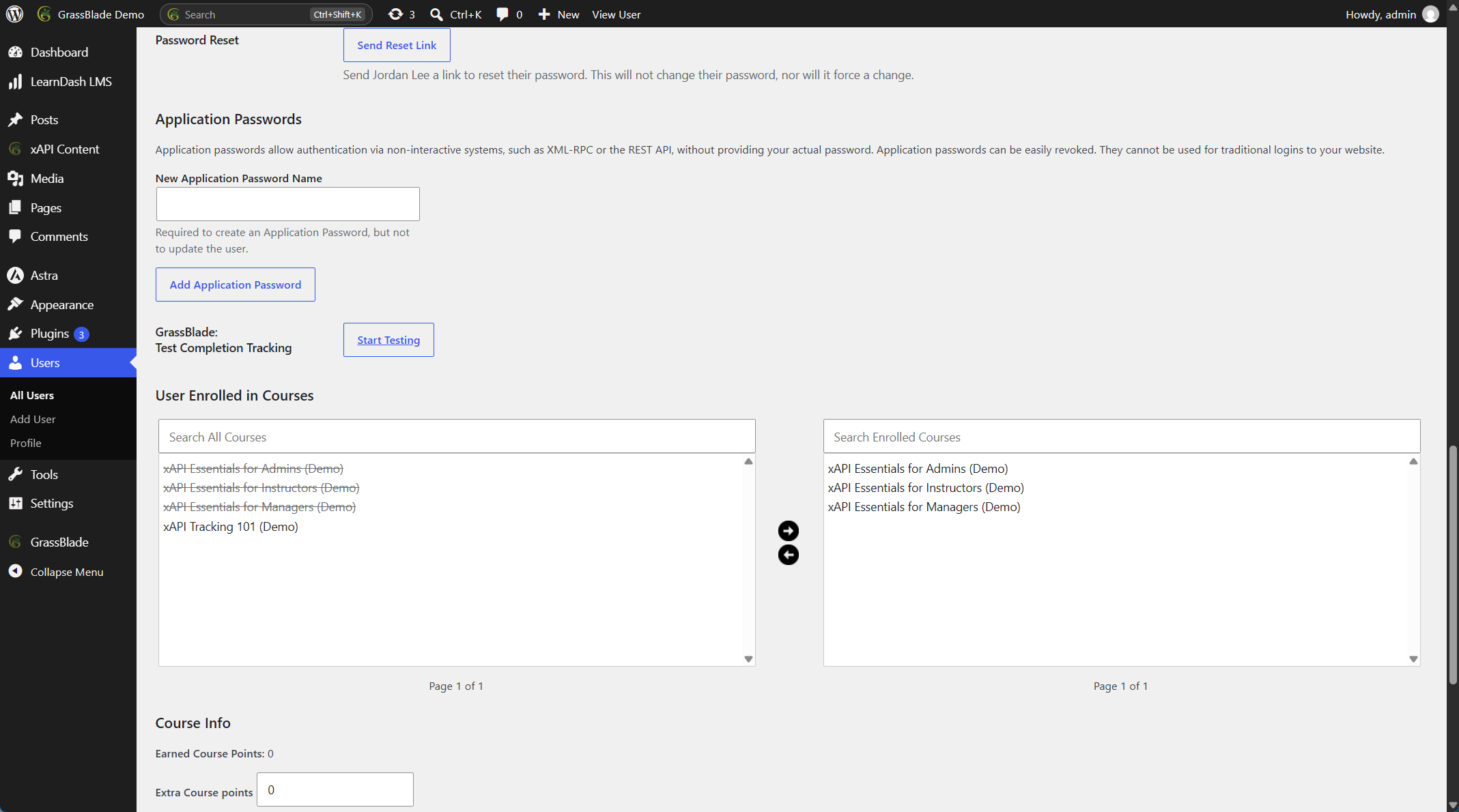
Step 1: Open the learner’s profile. In WP Admin, go to Users and edit the learner. Near the end of the profile, under GrassBlade: Test Completion Tracking, click Start Testing.
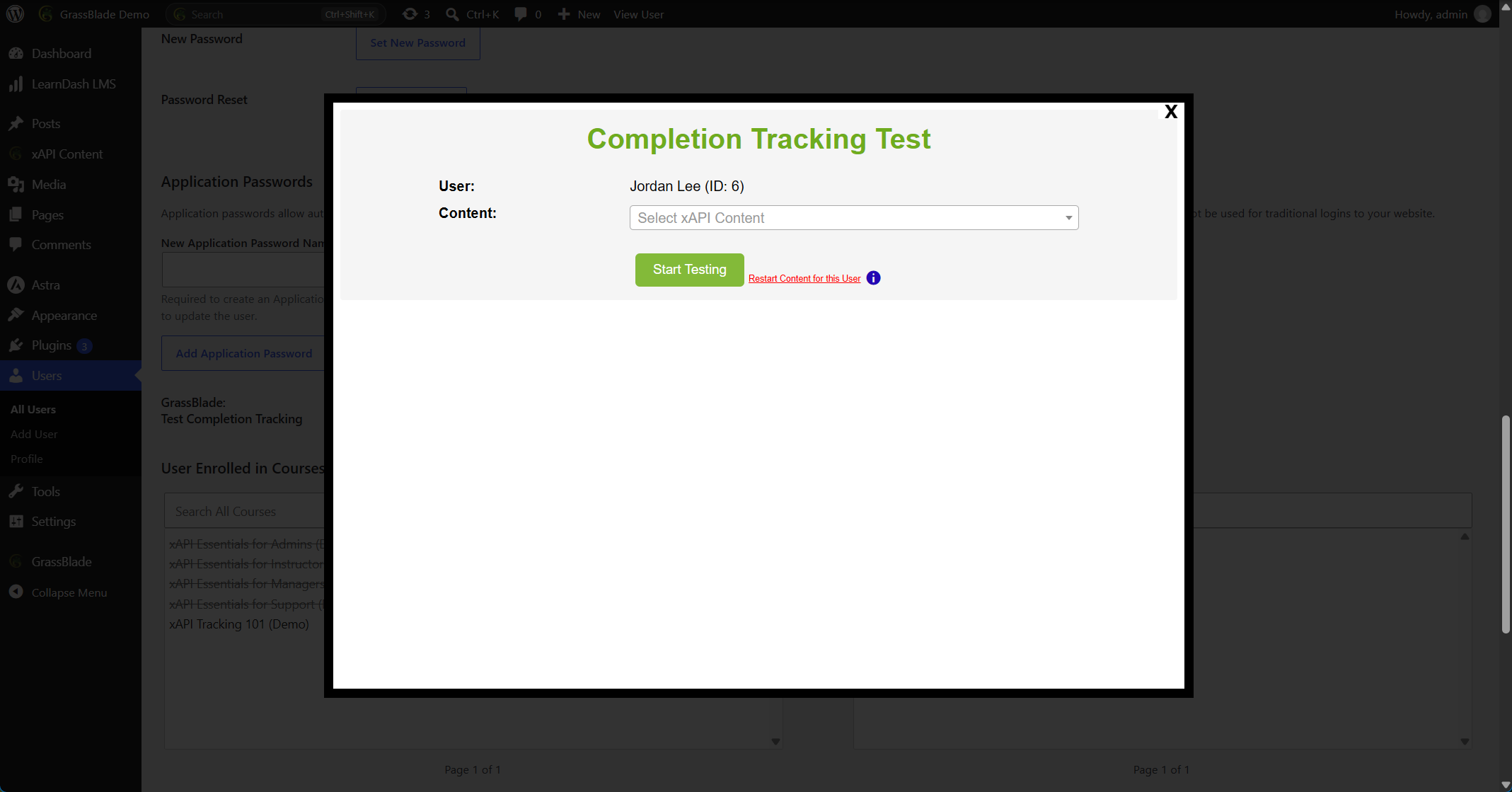
Step 2: Pick the content. The tool opens over the profile. In Content, choose the xAPI Content the learner is stuck on, then click Start Testing again. Don’t click Restart Content for this User; it resets the learner’s attempt.
Step 3: Read the checks from the top. The tool runs each check in order and marks it Passed or Failed:
| Check | What it tells you |
|---|---|
| 1. Completion Tracking is enabled? | Whether the content is allowed to complete lessons at all |
| 2. Multiple Contents with Same Activity ID | Whether two contents are fighting over one completion |
| 3. Content Added on & Completion | Where the content is used, and whether this learner completed those steps |
| 4. LMS Check | Whether the LMS integration is in place |
| 5. Completion Triggers in GrassBlade LRS | Whether the LRS will pass completions back to WordPress |
| 6. Statement Test | Whether the LRS has a completed or passed statement from this learner |
| 7. Error Log Test | What happened in WordPress when the completion arrived |
| 8. GrassBlade Email Test | Whether the learner’s email belongs to exactly one user |
Step 4: Open the blue ⓘ next to anything that fails. Every check, and every trigger inside check 5, has a blue info icon. Click it and a panel opens with four parts: About, Reason for Failure, Impact and Solution. Several include a button that takes you straight to the fix, such as Go to Edit Page or Go to Triggers. Read it before you change anything else.
You can also open the tool from the content: WP Admin > xAPI Content > edit the content > Test Completion Tracking, then enter the learner’s email, user ID or username.
Here’s how the four cases look in the tool:
| Case | What fails in the tool |
|---|---|
| 1. Completion Tracking is off | Check 1 |
| 2. Completion triggers missing | Check 5 (Passed, Failed, Completed triggers) |
| 3. Quiz pass marks don’t match | Nothing fails; the check 7 Error Log entry shows it |
| 4. The completion never reaches the LRS | Check 6, the Statement Test |
Case 1: Completion Tracking is turned off
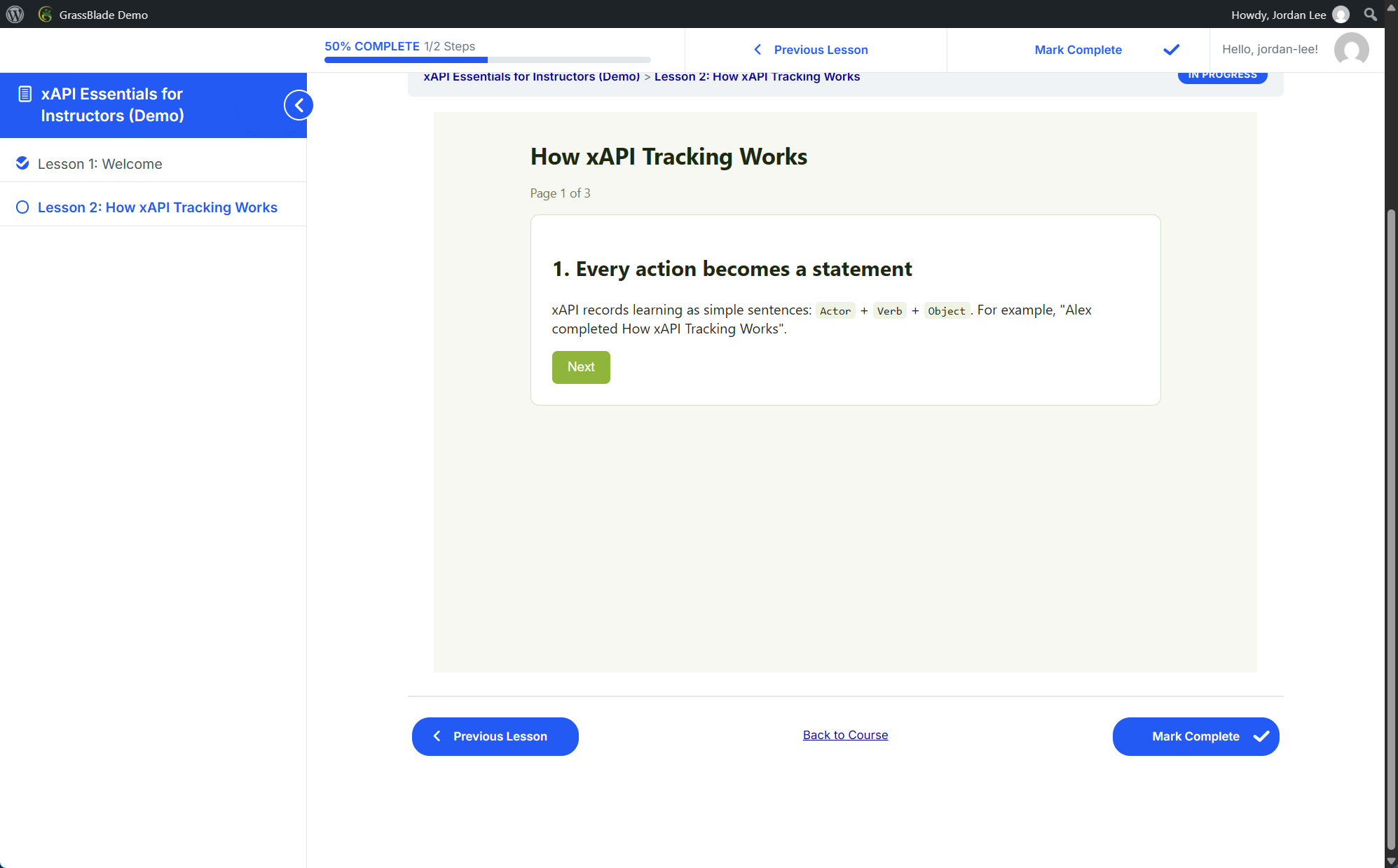
What the learner sees. Jordan finishes the module and it says “Module complete”, but lesson 2 still says In Progress. Look at the top bar: the Mark Complete button is there from the moment the lesson opens, before Jordan has even started the module. Nothing ties the lesson to the content. Many learners don’t click it, because they expect the lesson to complete itself, and the ones who do click it can complete the lesson without opening the module.
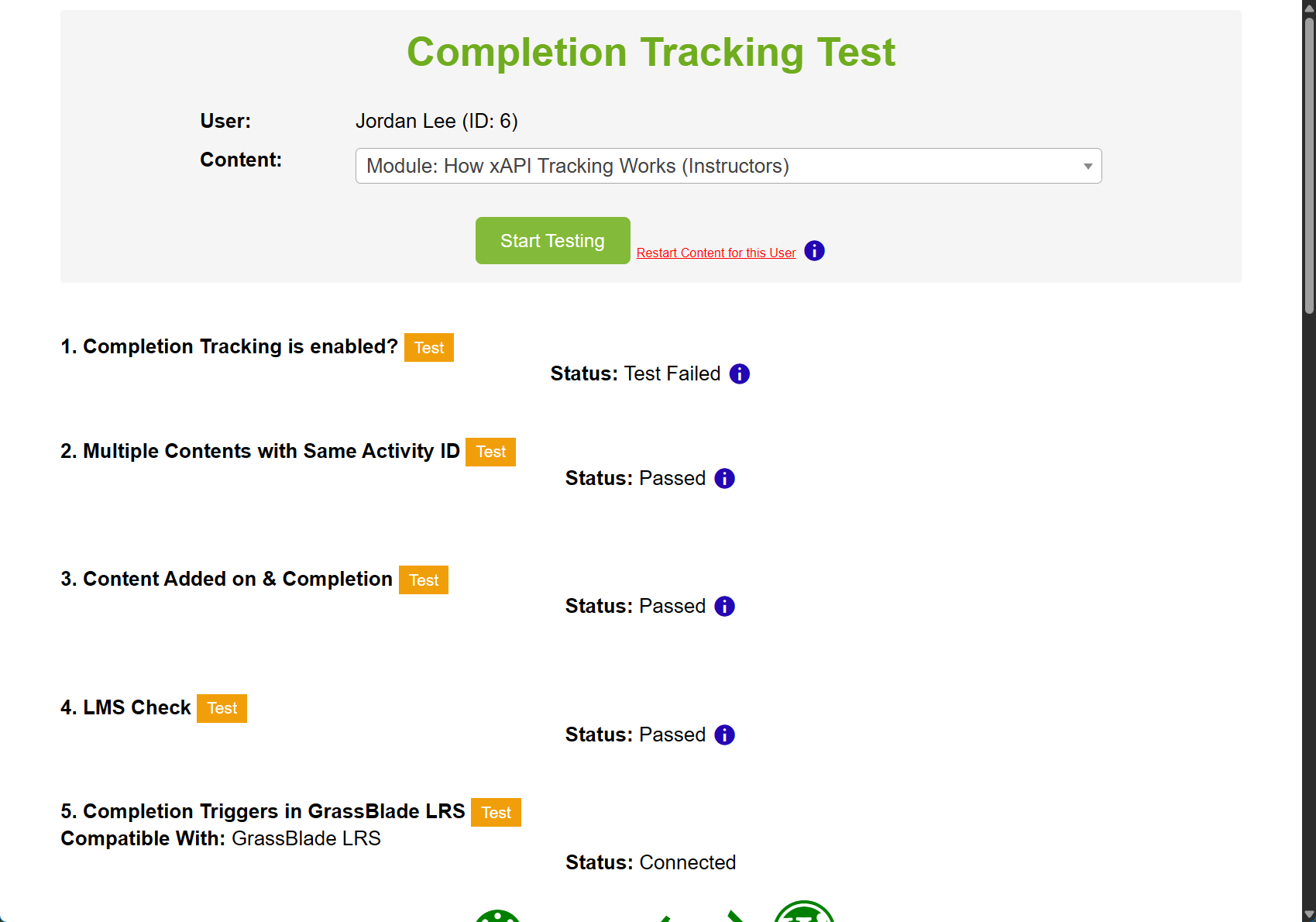
What the tool shows. Check 1, Completion Tracking is enabled?, fails. Everything else passes, including the triggers and Jordan’s completion statement.
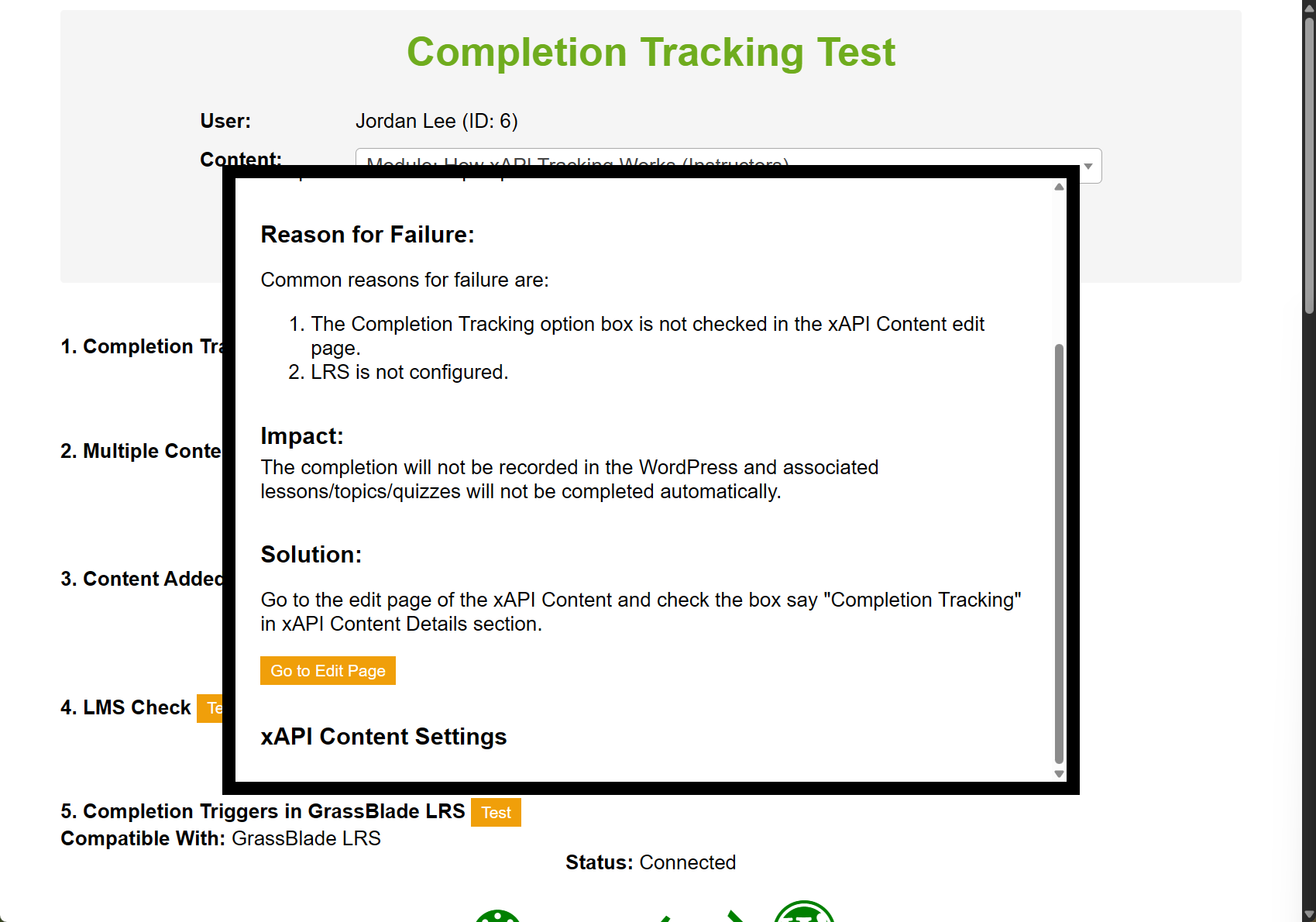
The ⓘ panel names the cause (“The Completion Tracking option box is not checked in the xAPI Content edit page”) and gives the fix, with a Go to Edit Page button.
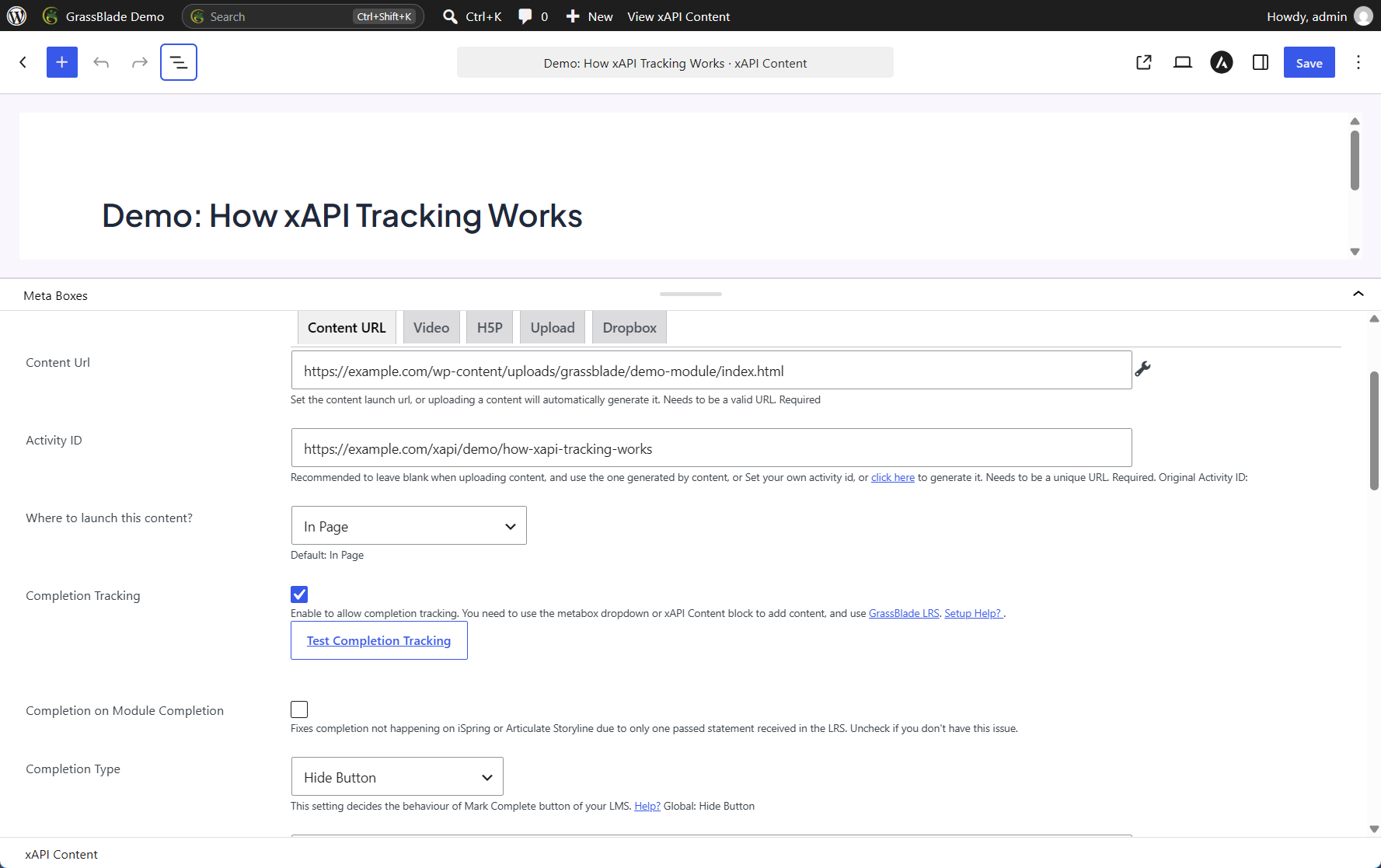
The fix. Edit the content (WP Admin > xAPI Content) and, in xAPI Content Details:
- Tick Completion Tracking and save. Without it, GrassBlade records the learner’s activity but never asks LearnDash to complete the lesson. This is the fix.
- Completion Type is a separate setting. It only controls LearnDash’s Mark Complete button; it doesn’t decide whether the lesson completes. The default is Hide Button. Set it to suit your course:
- Hide Button (default): no button; the lesson completes automatically when the content does.
- Show button on completion: the button appears once the content is completed.
- Enable button on completion: the button is visible but disabled until the completion arrives. While you’re testing, this shows you the moment the completion comes through.
- Auto-redirect on completion: completes the lesson and moves the learner to the next step.
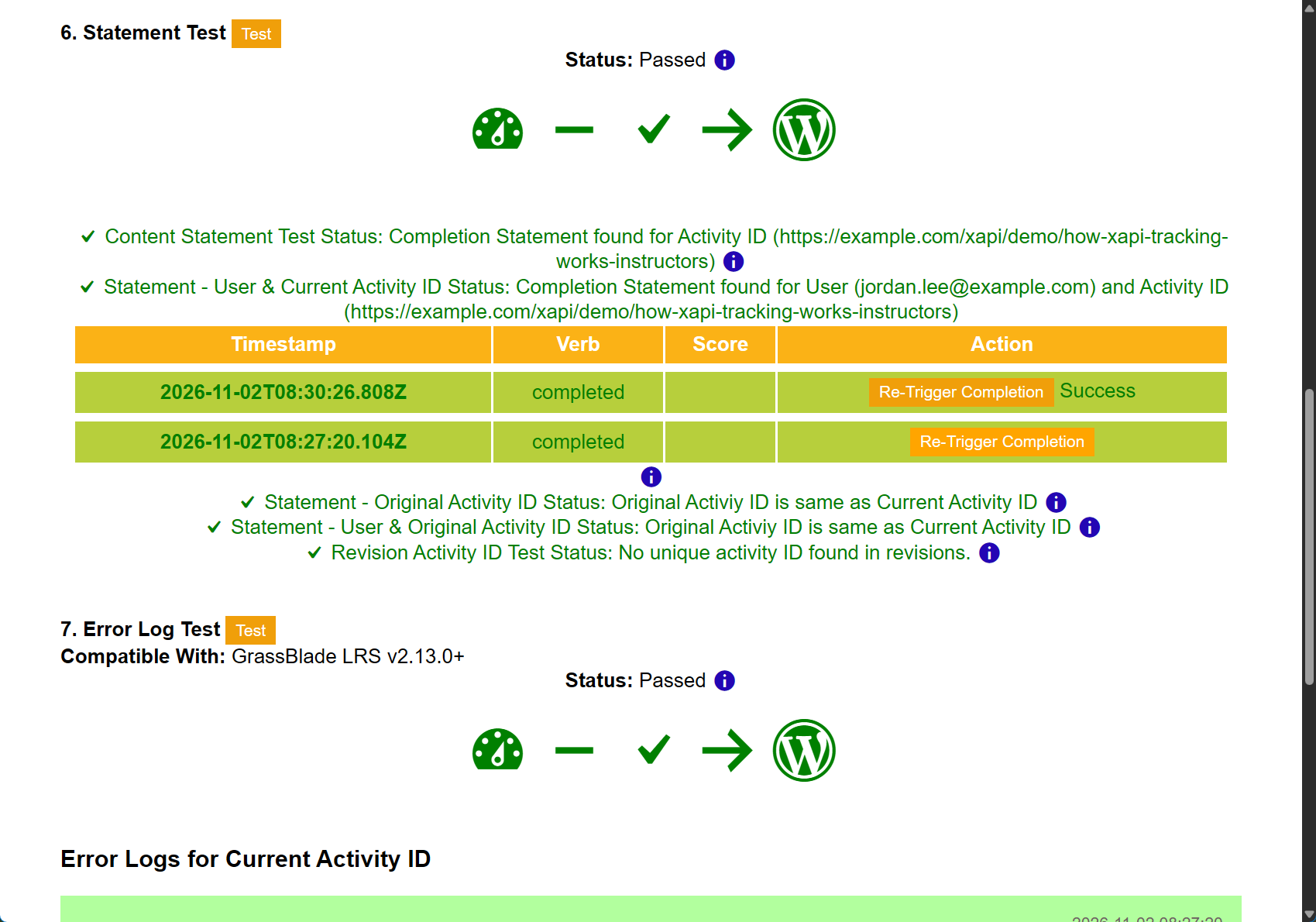
Learners who already finished don’t have to redo the content. Run the testing tool for them again. When the Statement Test lists their completions with a Re-Trigger Completion button, click it. On our demo it returned “Success”, and LearnDash marked Jordan’s lesson 2 complete straight away.
Case 2: The completion triggers were never created
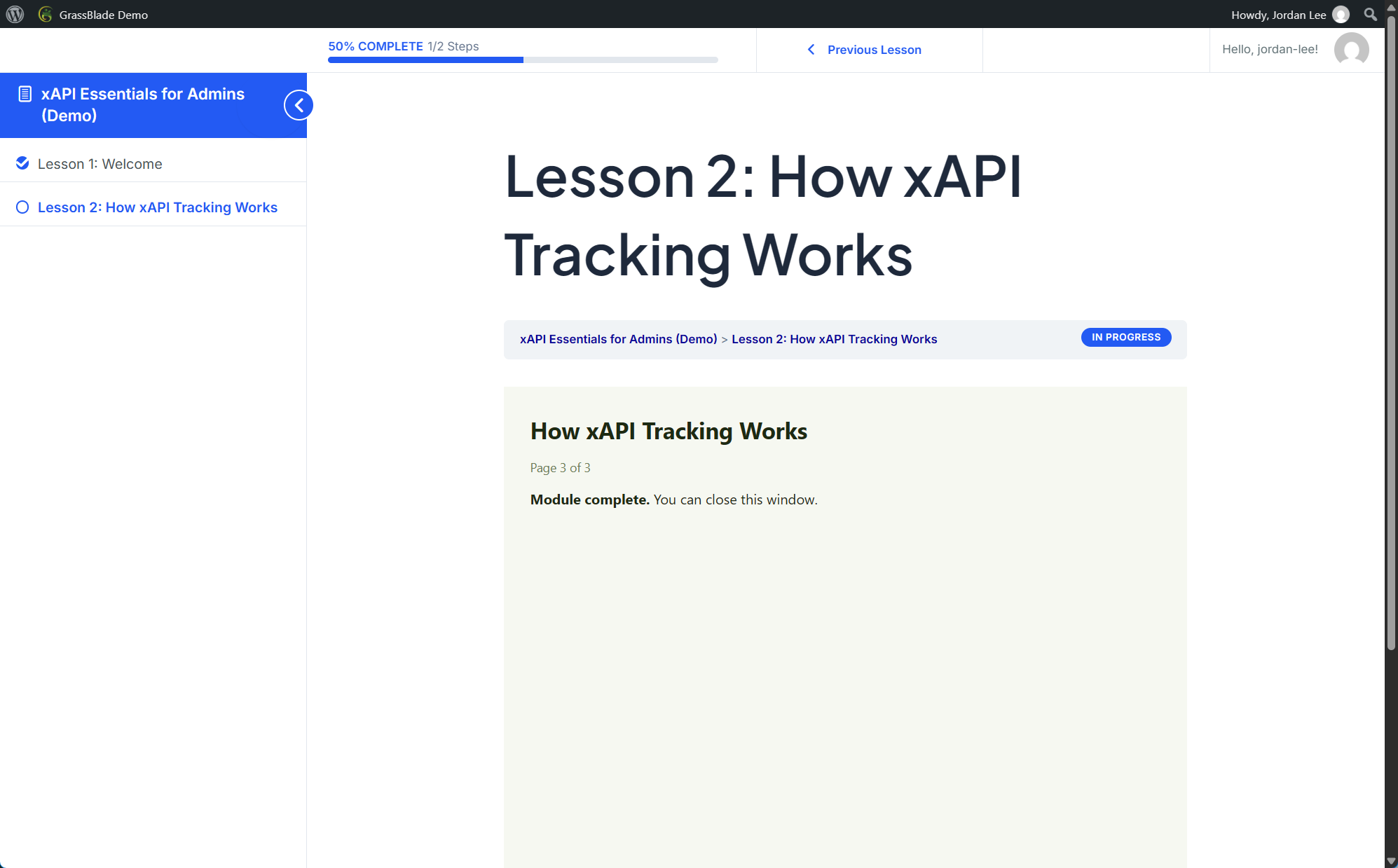
What the learner sees. This is the frustrating one. Jordan finishes the module, and lesson 2 stays In Progress. With Completion Type set to Hide Button there’s no Mark Complete button either, so Jordan is stuck with no way forward.
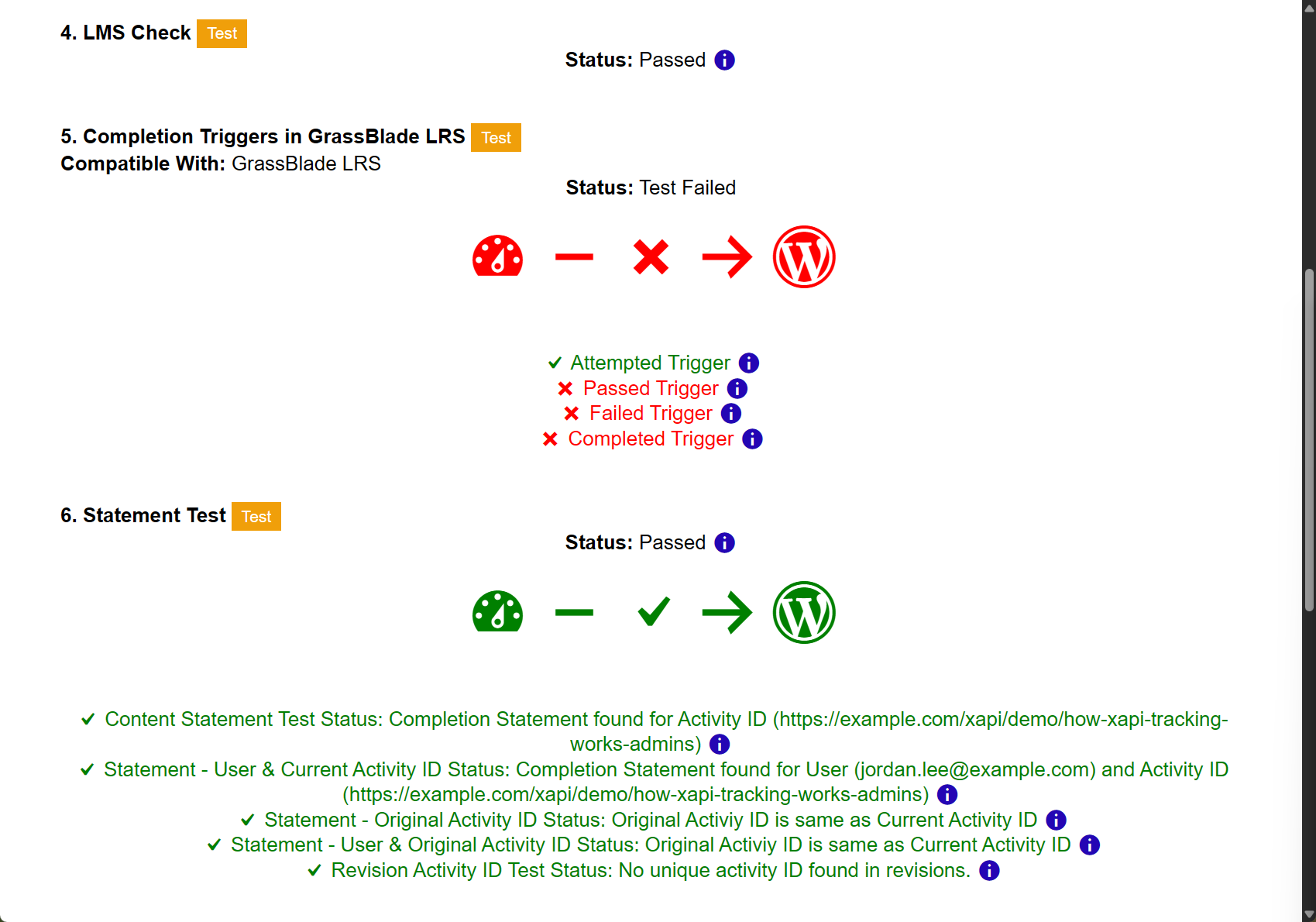
What the tool shows. Check 5, Completion Triggers in GrassBlade LRS, fails. The Attempted trigger exists, but the Passed, Failed and Completed triggers are missing. Check 6 passes: the LRS did receive Jordan’s completion. It just had no trigger to send it back to WordPress.
Click the ⓘ next to a missing trigger. The panel lists the exact trigger to create (name, type, URL, verb, status) and has a Go to Triggers button.
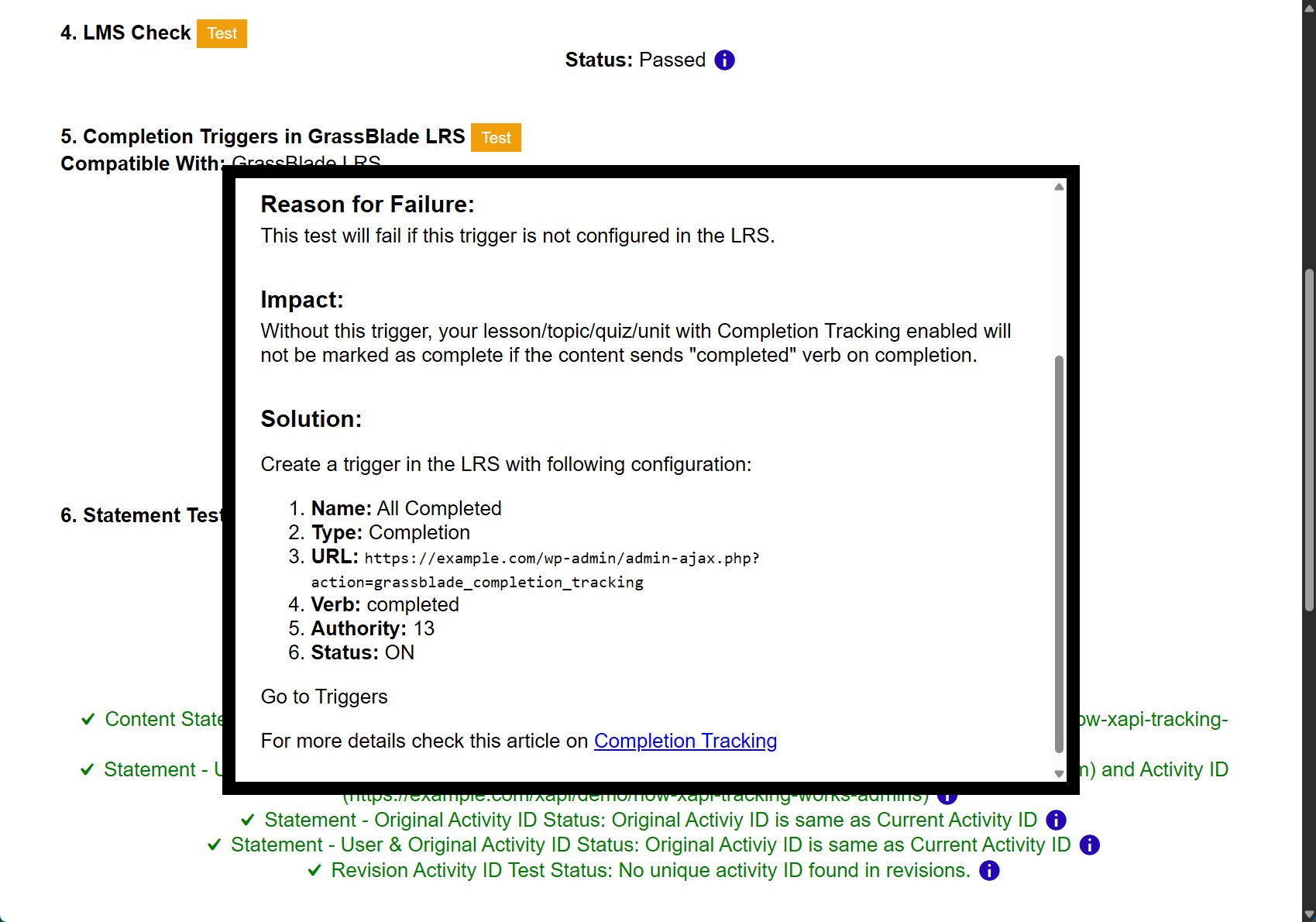
The fix. In GrassBlade LRS, open Triggers and click Add New for each missing trigger, using the settings from the panel: type Completion, the URL of your WordPress site’s admin-ajax.php?action=grassblade_completion_tracking, and status ON. Create one each for completed, passed and failed. When they’re right, the Triggers page shows a green banner saying the Completion Triggers for your WordPress website are configured correctly.
Learn more: Completion Tracking
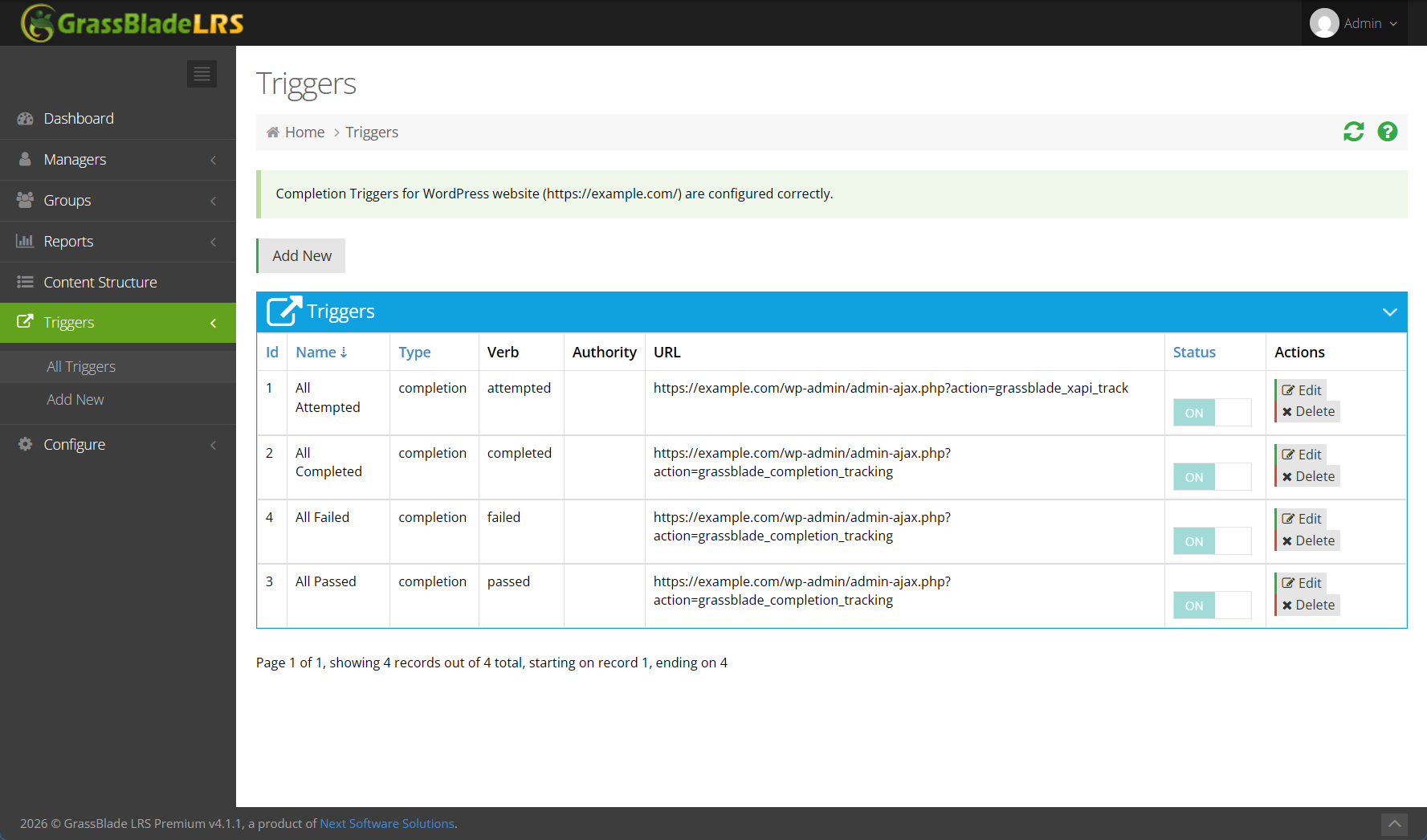
If the triggers exist but point at an old domain or a staging site, the result is the same. Edit the URL. From then on, completions go through. For a learner who finished while the triggers were missing, use Re-Trigger Completion if the Statement Test shows the button, or ask them to finish the content once more.
Case 3: The quiz says “Passed”, LearnDash says no
This one catches experienced site owners, because GrassBlade and LearnDash each judge the score against their own passing percentage.
Our lesson 2 has a LearnDash quiz with xAPI content inside it:
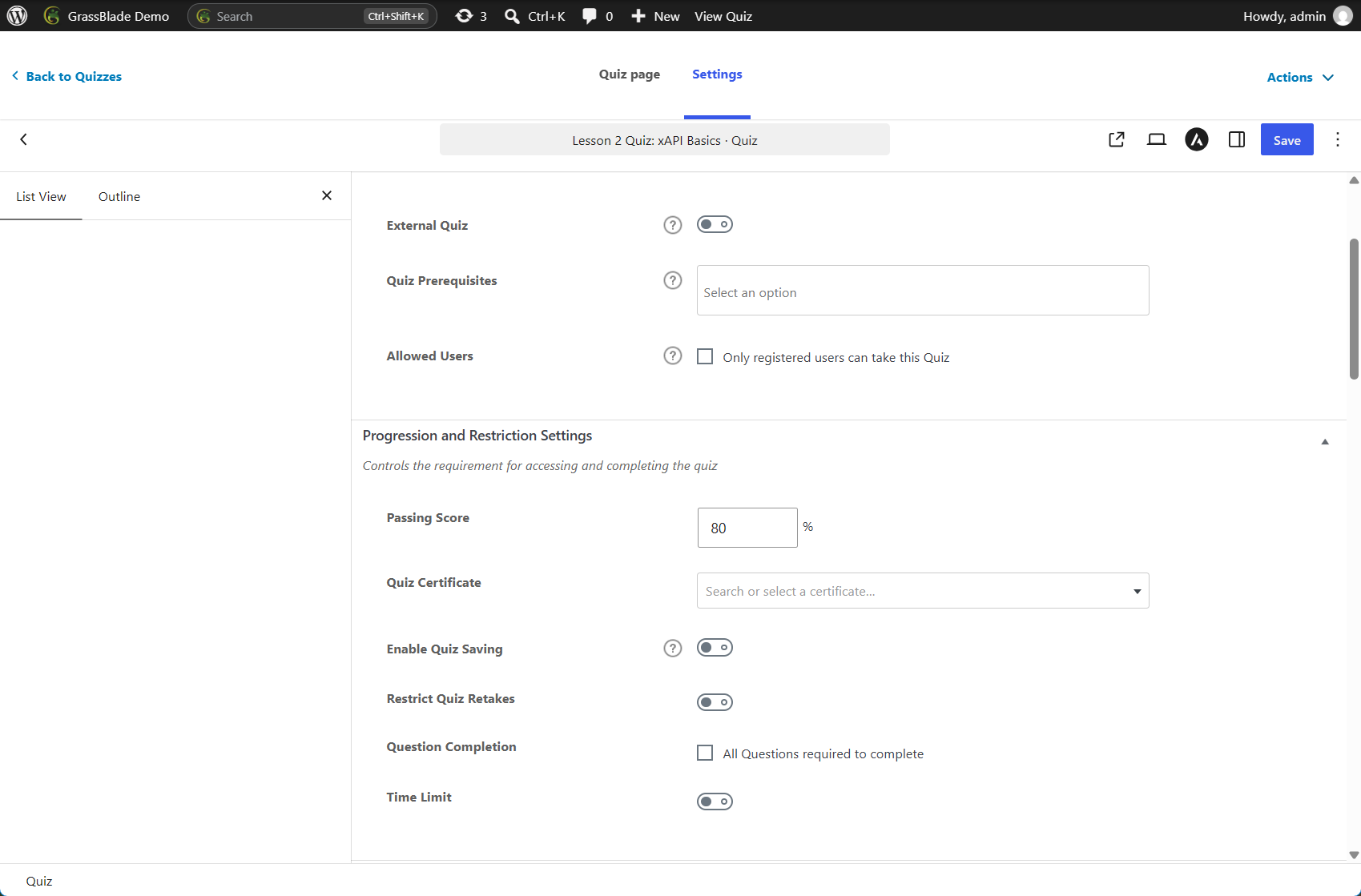
- The LearnDash quiz has a Passing Score of 80%.
- The xAPI Content has a Passing Percentage of 50%. This field is optional, and many sites leave it empty. We filled it in to show what happens when the two disagree.
What the learner sees. Jordan answers 2 of 3 questions correctly (67%). The content says “Passed”, and the results table under it shows Status: Passed. But the sidebar still shows lesson 2 and its quiz open, and the course stays at 50%.
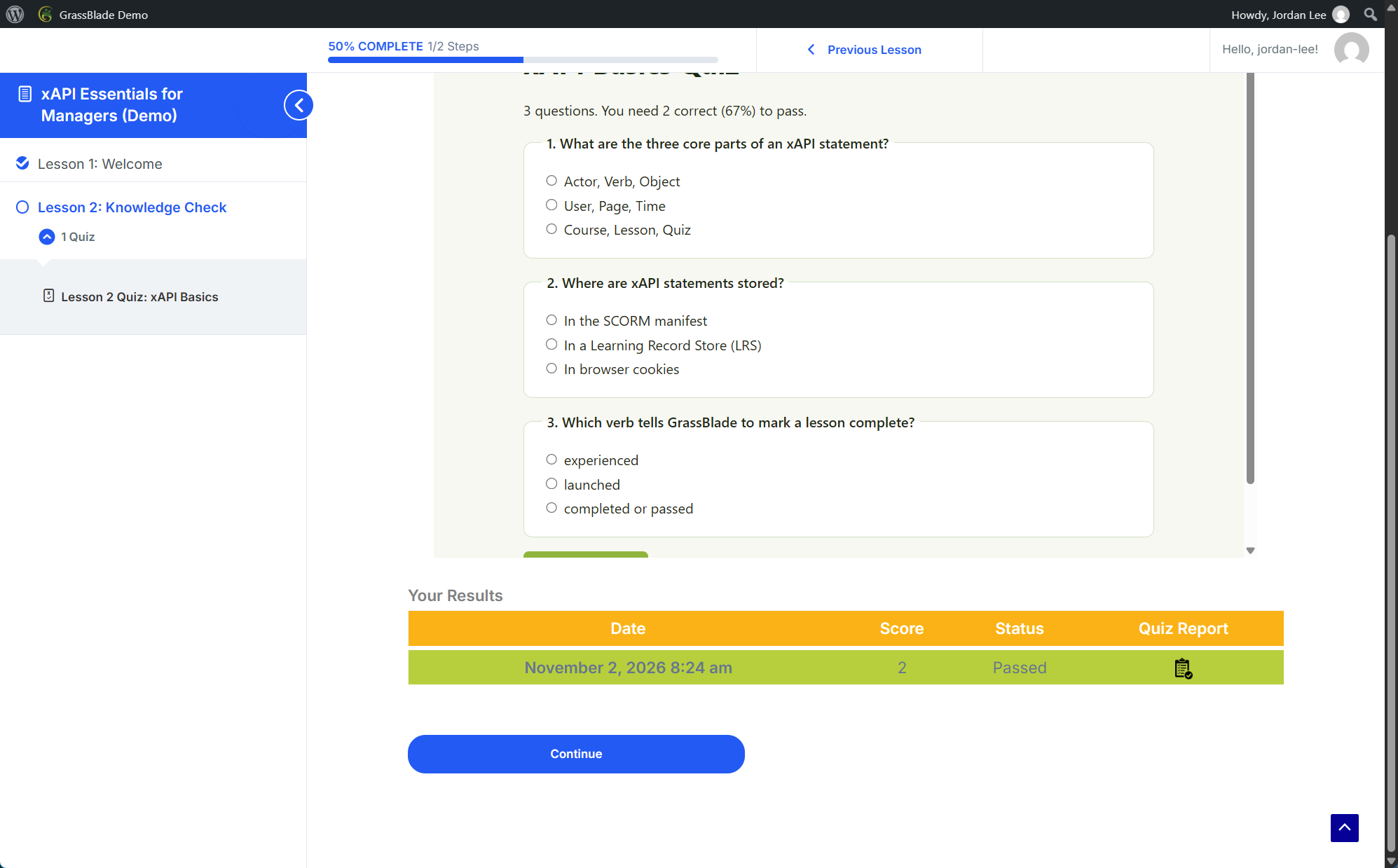
What happened: GrassBlade compared 67% with the content’s 50% and recorded Passed. LearnDash compared the same 67% with the quiz’s 80% and recorded a failed quiz attempt. A failed quiz doesn’t complete the lesson.
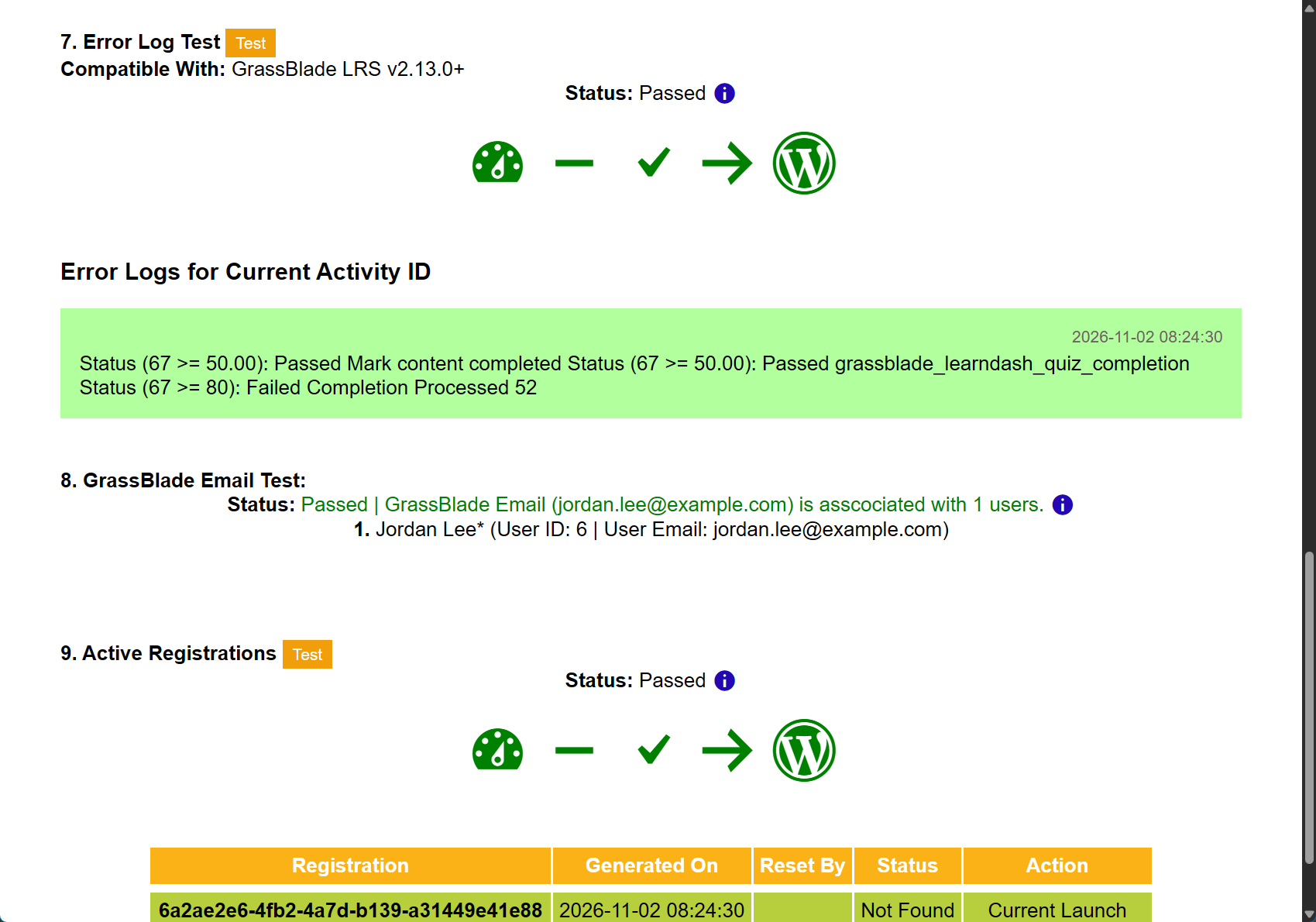
What the tool shows. Every check passes, so read the Error Log Test. Its entry spells it out: Status (67 >= 50.00): Passed, then grassblade_learndash_quiz_completion Status (67 >= 80): Failed.
The fix. Make the pass marks agree:
- LearnDash: edit the quiz, open Settings, and set Passing Score under Progression and Restriction Settings. This is the pass mark that completes the lesson.
- GrassBlade: Passing Percentage on the xAPI Content is optional. Leave it empty, or set it to the same number as the quiz.
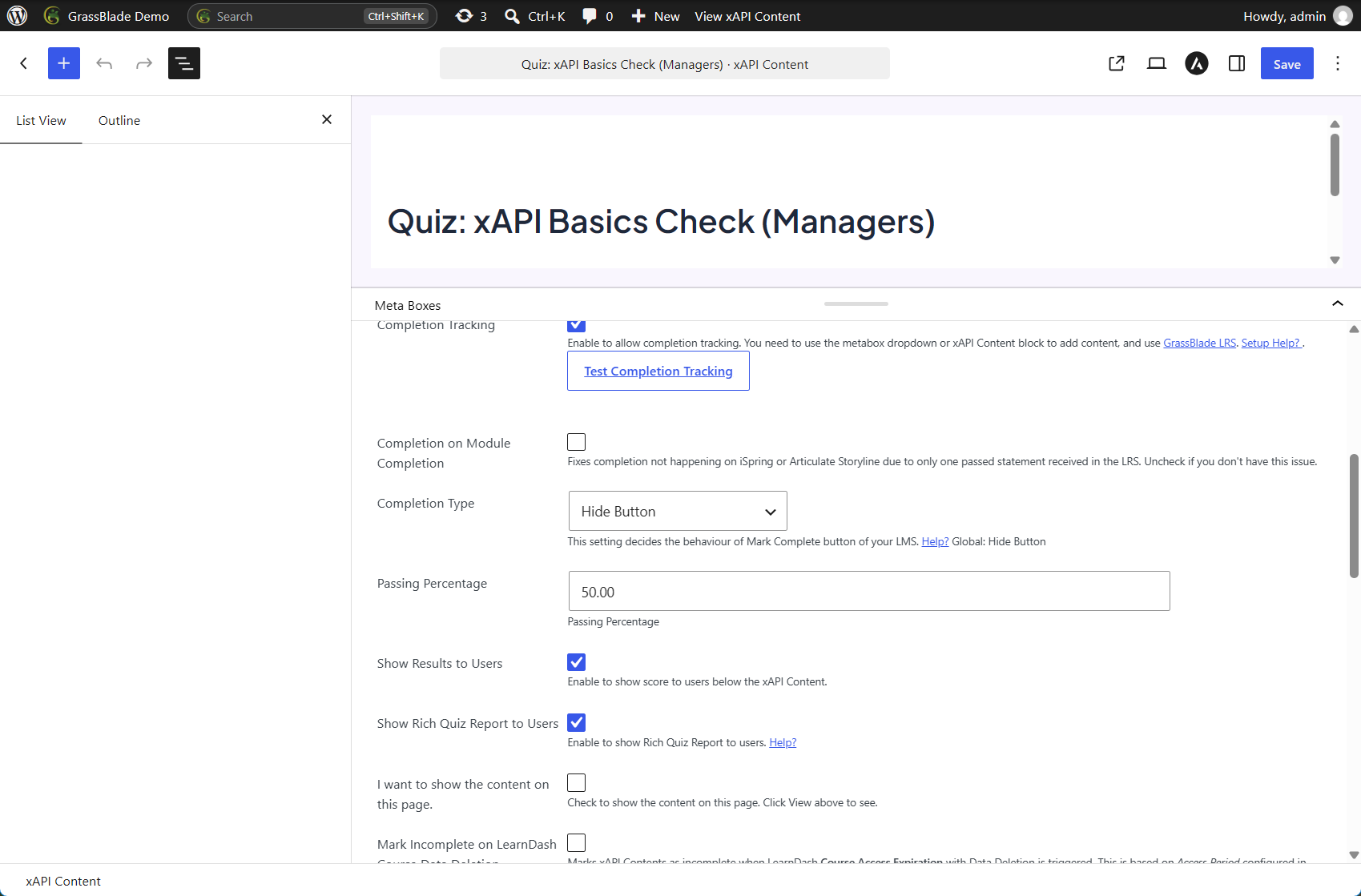
Also check the pass mark set in your authoring tool when you published the package. Ours tells learners “You need 2 correct (67%) to pass”, so it said “Passed” too. When all three numbers agree, learners never see “Passed” on a quiz that LearnDash failed.
A learner whose attempt was already recorded as failed needs a new attempt after the change. GrassBlade won’t record the same statement against the quiz twice.
Case 4: The completion never reaches the LRS
This one happens even when everything above is set up correctly, which makes it the most common case on a working site.
What the learner sees. The same as case 2: they reach the end, and lesson 2 stays In Progress.
What the tool shows. Check 5 passes, so the triggers are fine. Check 6, the Statement Test, fails: there’s no completed or passed statement in the LRS for this learner and this content.
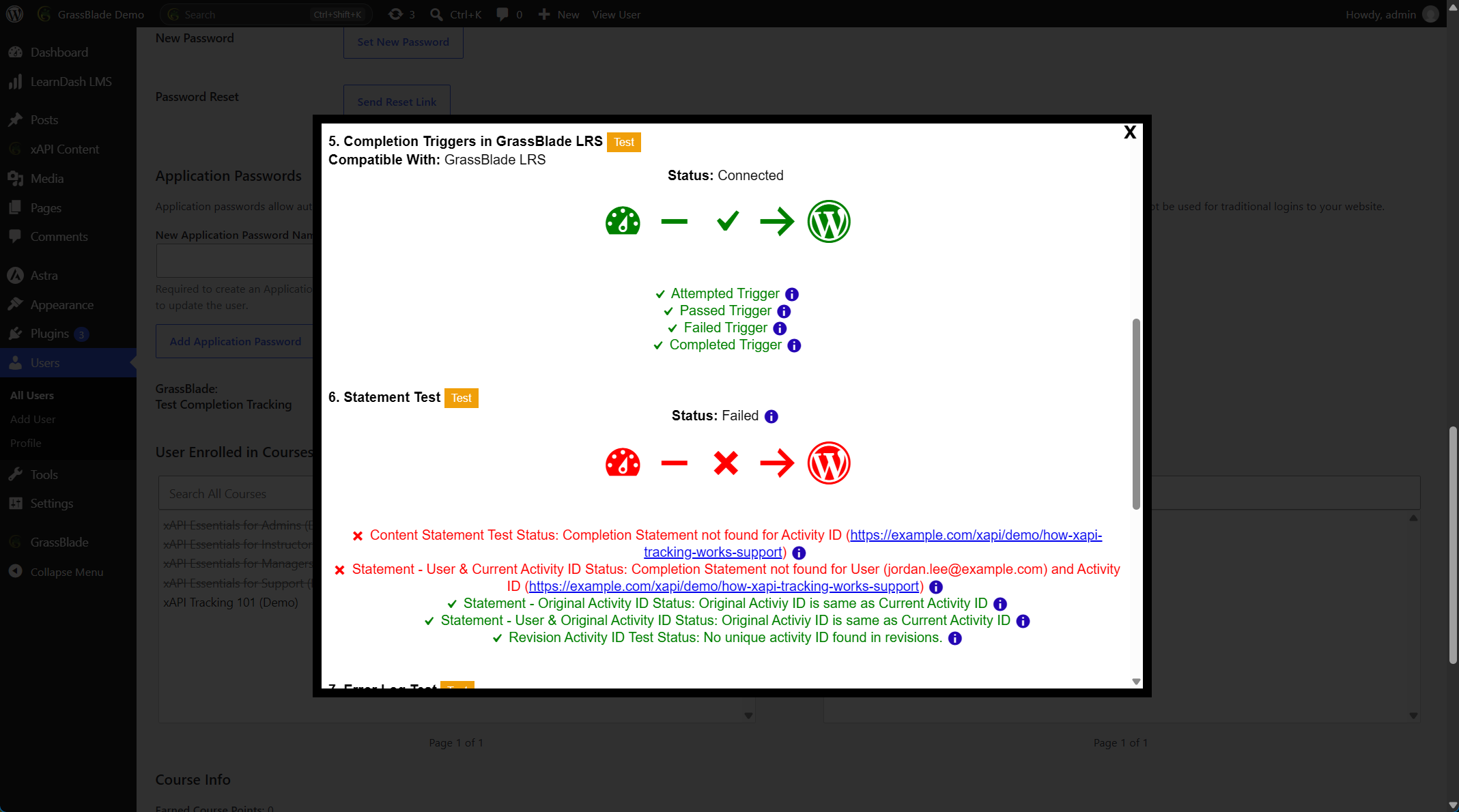
The Statement Test’s ⓘ panel names the first thing to check: the learner didn’t finish all the steps of the content. These are the usual reasons the completion never arrives, and what to do about each:
| Why | What to do |
|---|---|
| The learner didn’t complete every step the content requires | Ask them to finish all the steps. Check your authoring tool’s completion rule if you’re not sure what counts. |
| A workplace firewall or proxy blocked the content from reaching the LRS | Whitelist your LRS address on that network. The data never reached the LRS, so the learner needs to complete the content again. |
| The network dropped while the content was sending | The learner completes the content again on a stable connection. |
When the statement is in the LRS but the lesson still didn’t complete, the Statement Test passes and the Error Log Test shows the trigger failing. Here, a firewall or security plugin on your WordPress site blocked the trigger the LRS sent back. Whitelist your LRS in that plugin or firewall, then click Re-Trigger Completion in the Statement Test. The learner doesn’t need to redo anything.
On our demo, we showed this case with a learner who never finished the module, so no statement reached the LRS. We didn’t reproduce the firewall and network causes; they produce the same result in the tool.
Quick reference: what the learner sees, and where to look
| What the learner sees | Check that fails in the testing tool | Fix |
|---|---|---|
| Content finished, lesson In Progress, Mark Complete shown before the content even starts | 1. Completion Tracking is enabled? | Tick Completion Tracking (Case 1) |
| Content finished, lesson In Progress, no Mark Complete button | 5. Completion Triggers in GrassBlade LRS | Create the completed, passed and failed triggers (Case 2) |
| Content says Passed, quiz and lesson stay open | None; read the 7. Error Log entry | Use the quiz Passing Score as the pass mark; leave the content Passing Percentage empty or set it to match (Case 3) |
| Learner finished, lesson In Progress, triggers fine | 6. Statement Test | Not every step finished, or a firewall or network drop stopped it. Fix the cause, complete the content again (Case 4) |
| Statement is in the LRS, Error Log shows the trigger failing | 7. Error Log Test | Whitelist the LRS in your WordPress security plugin or firewall, then Re-Trigger Completion (Case 4) |
| Not sure which it is | Run all checks, open the ⓘ for any that fail | Follow that panel’s Solution |
FAQ
Why does GrassBlade show “Passed” when LearnDash says the quiz failed?
They used different pass marks. GrassBlade’s reports use the xAPI Content’s Passing Percentage when you’ve set one. LearnDash uses the quiz’s Passing Score. Leave the content’s field empty, or set it to the same number.
The learner says they finished, but the LRS has nothing. What happened?
The completion never reached the LRS. Usually the learner skipped a step the content requires, or a workplace firewall or a network drop stopped the data. Fix the cause, then have them complete the content again (Case 4).
Do learners have to redo the content after I fix a setting?
Not always. After you turn on Completion Tracking or add the triggers, run the testing tool for the learner. If the Statement Test shows Re-Trigger Completion, click it and the lesson completes. For a failed quiz attempt, the learner needs a new attempt.
Why is Mark Complete showing before the learner has even started?
Completion Tracking is off for that content, so GrassBlade leaves LearnDash’s button alone. Turn tracking on. The Completion Type then decides how the button behaves (Hide Button by default).
What do the blue icons in the testing tool do?
Each opens a panel explaining that check: what it tests, the common reasons it fails, the impact, and the solution, often with a button to the right settings page.
Which testing-tool options change a learner’s data?
Restart Content for This User resets the learner’s attempt, and Re-Trigger Completion re-sends a completion to WordPress. The checks themselves only read.
Still stuck?
The Completion Testing Tool guide explains every check. Our Completion Tracking Not Working checklist covers the less common causes, such as Activity ID changes, re-uploaded packages and connection tests. To see it all working, try the GrassBlade demo, or read how to add xAPI, SCORM and cmi5 content to LearnDash.