
GrassBlade Cloud LRS is the cloud version of the GrassBlade LRS with all the premium features. It is hosted on our servers which are managed by us. Follow the steps to get started quickly.
Login to the LRS
When you purchase a new cloud GrassBlade LRS subscription, you will receive a Welcome email containing GrassBlade LRS URL and a button link that redirects you to password reset page.
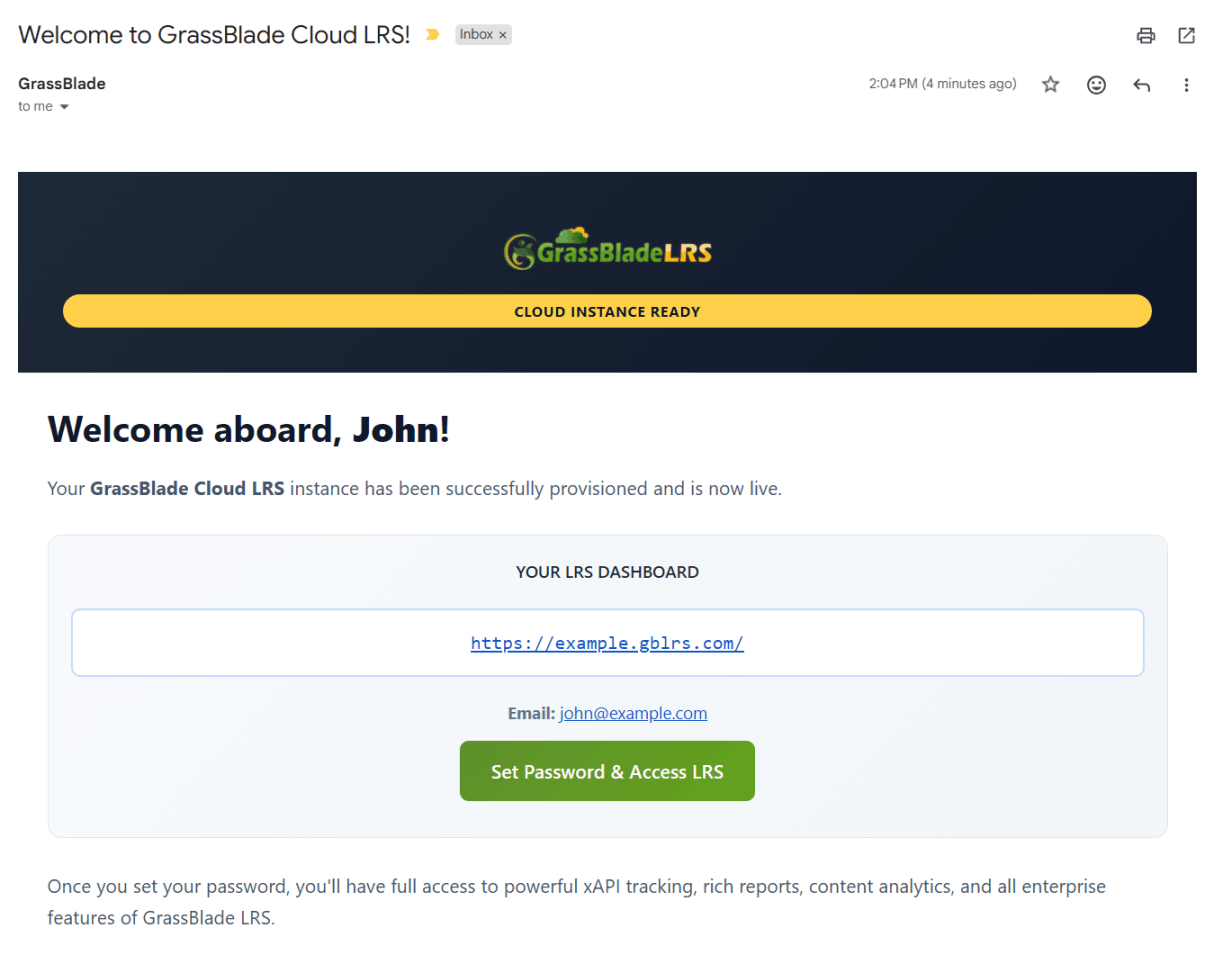
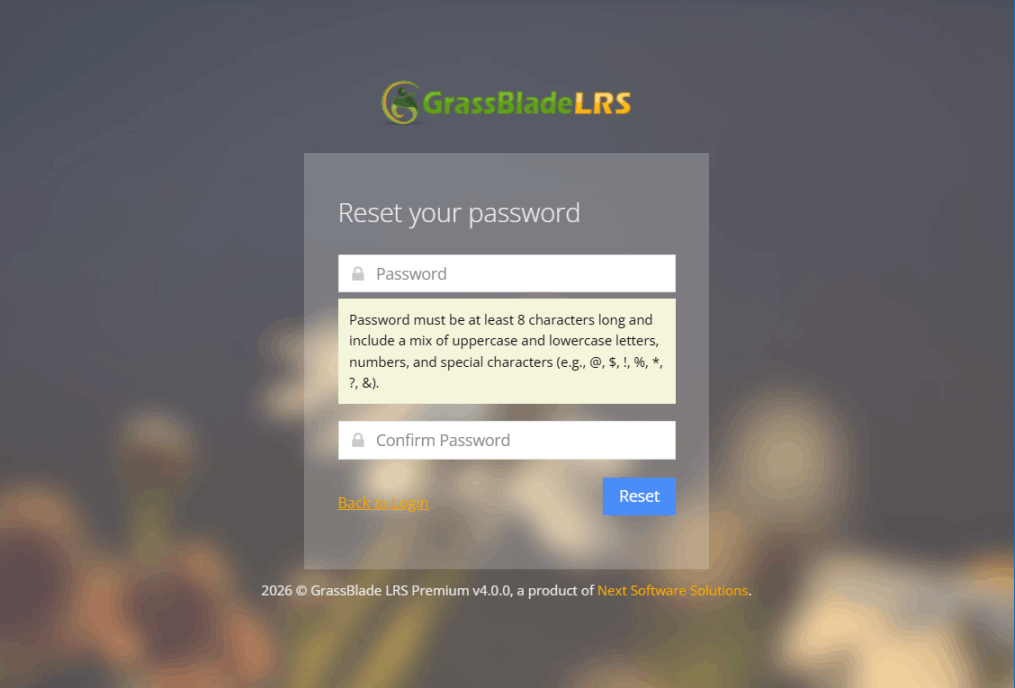
Click the Set Password button, you will be redirected to the password reset page and here set your admin password.
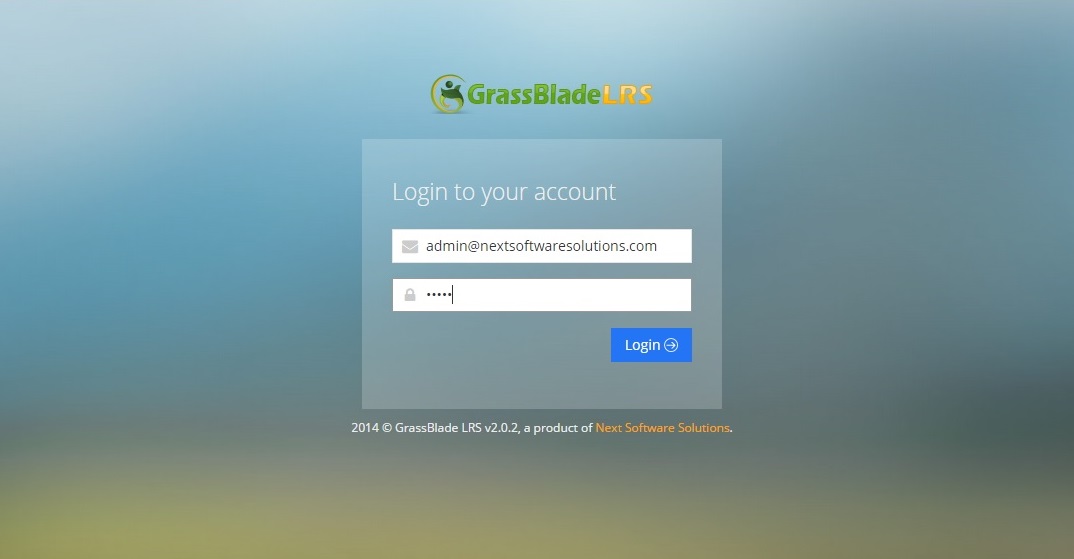
Now login using your admin credential.
Creating or Editing a Manager
To edit your Admin Credential or add more Manager. follow these steps:
Edit your admin manager credential:
- Go to Managers> All Managers.
- click Edit button of the Admin Manager you want to edit.
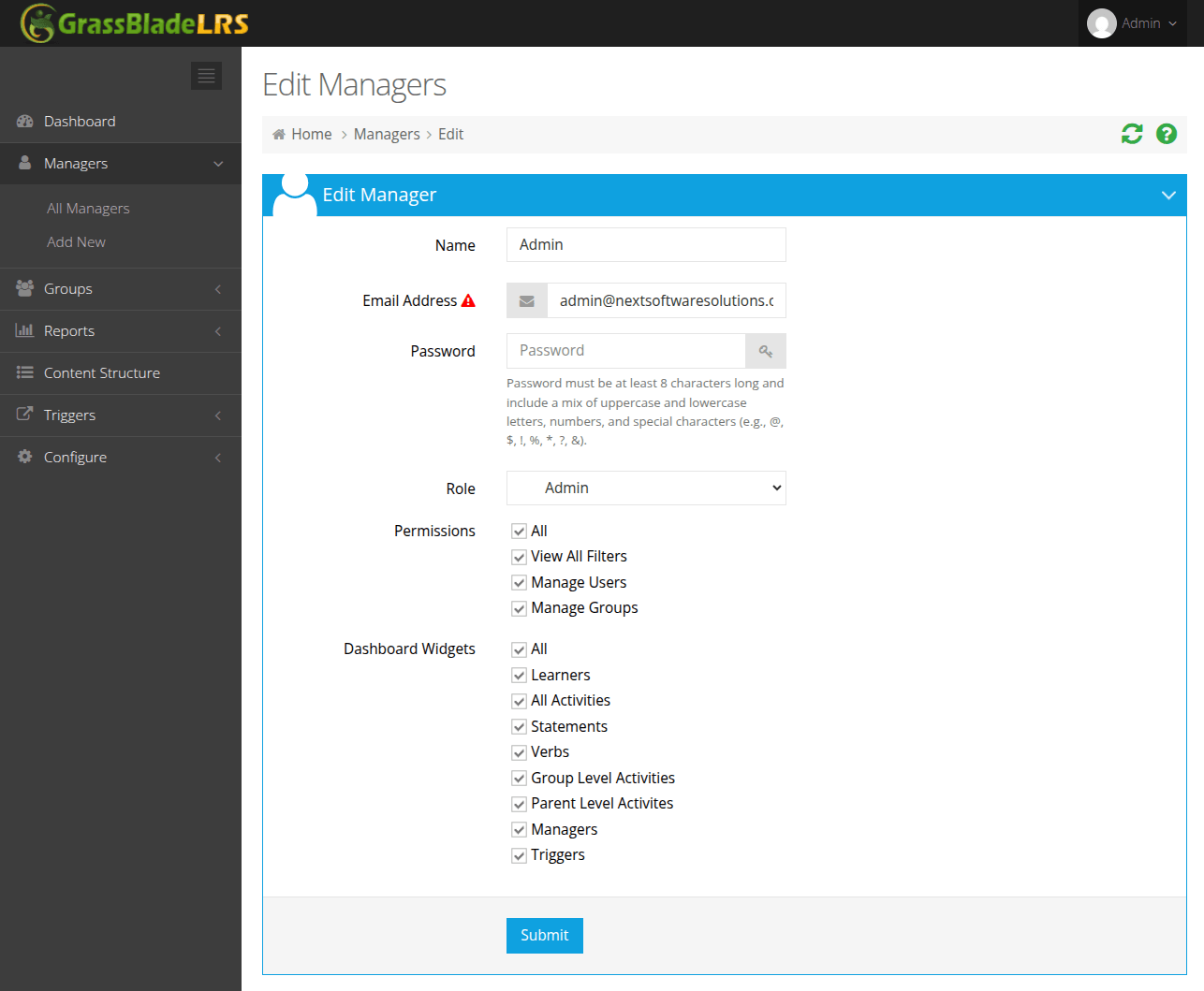
- In the Edit Manager Section, Update the credential and click submit.
Create a new manager:
- Go to Managers > Add New.
- Enter the details and select the Role between “Admin” and “User”.
- Click Submit to save.
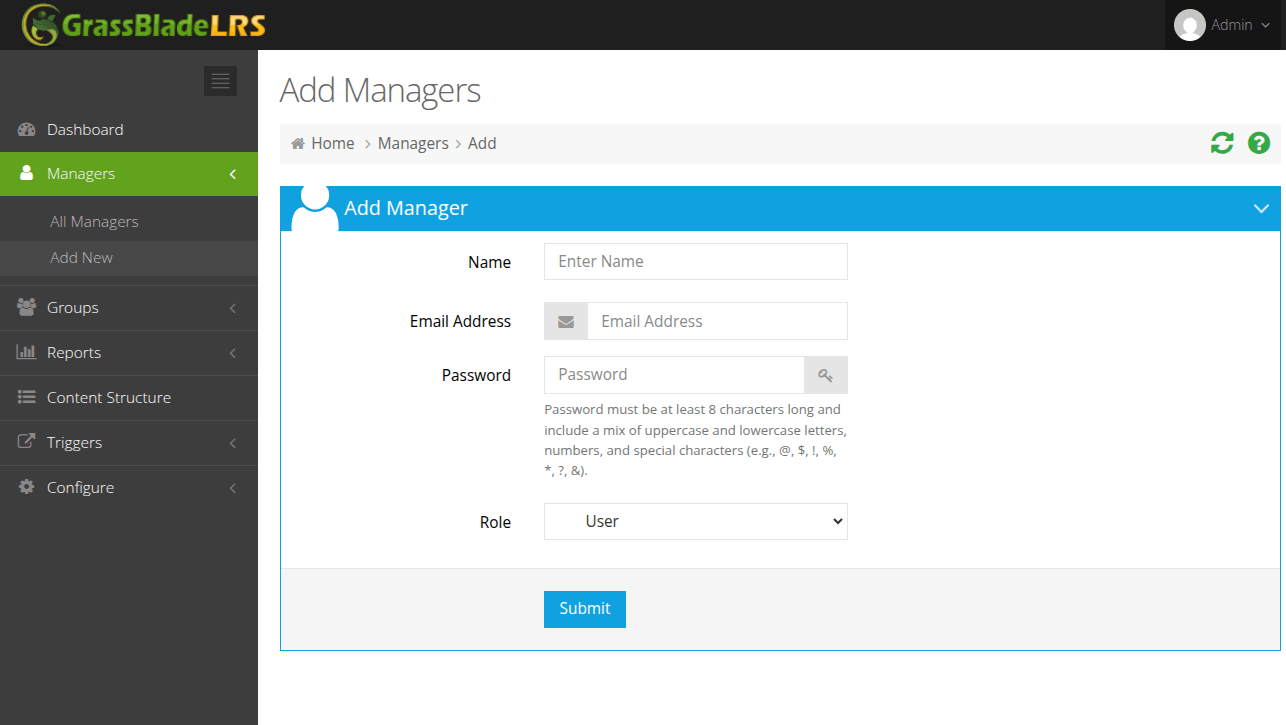
PS: Please note that “Manager” was earlier named as “User” and hence you might find both words used interchangeably in some places.
To learn more about Managers read: Managers in LRS.
Generate Basic AuthToken
On the Managers Edit page click on the “Add New Basic AuthToken” button to get new API Credentials:
- API User
- API Password
- Endpoint (check Authentication Details section)
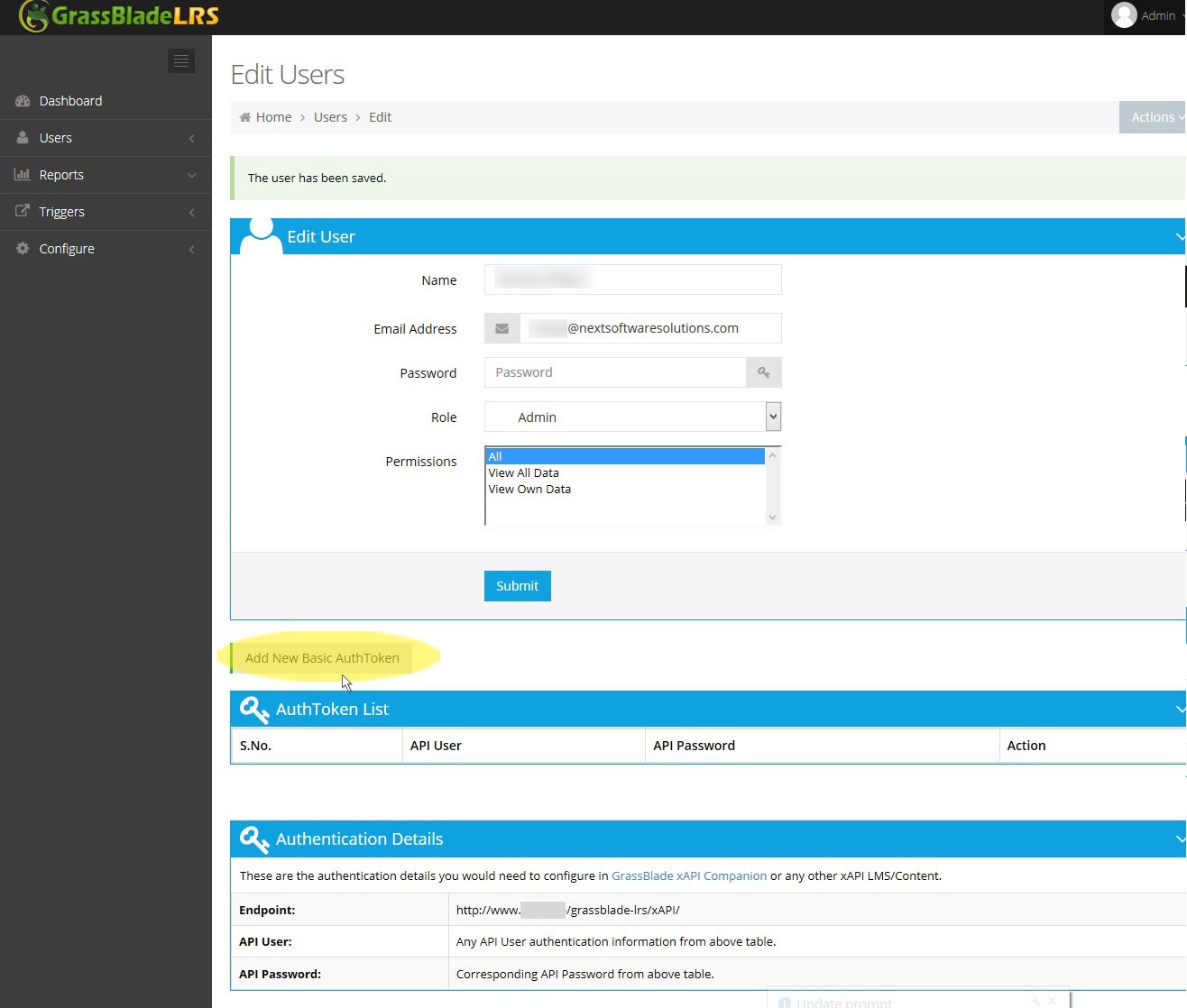
AuthToken API for xAPI Programs
Copy the API User, API Password, and Endpoint URL and use it in your xAPI Program, LMS or Content.
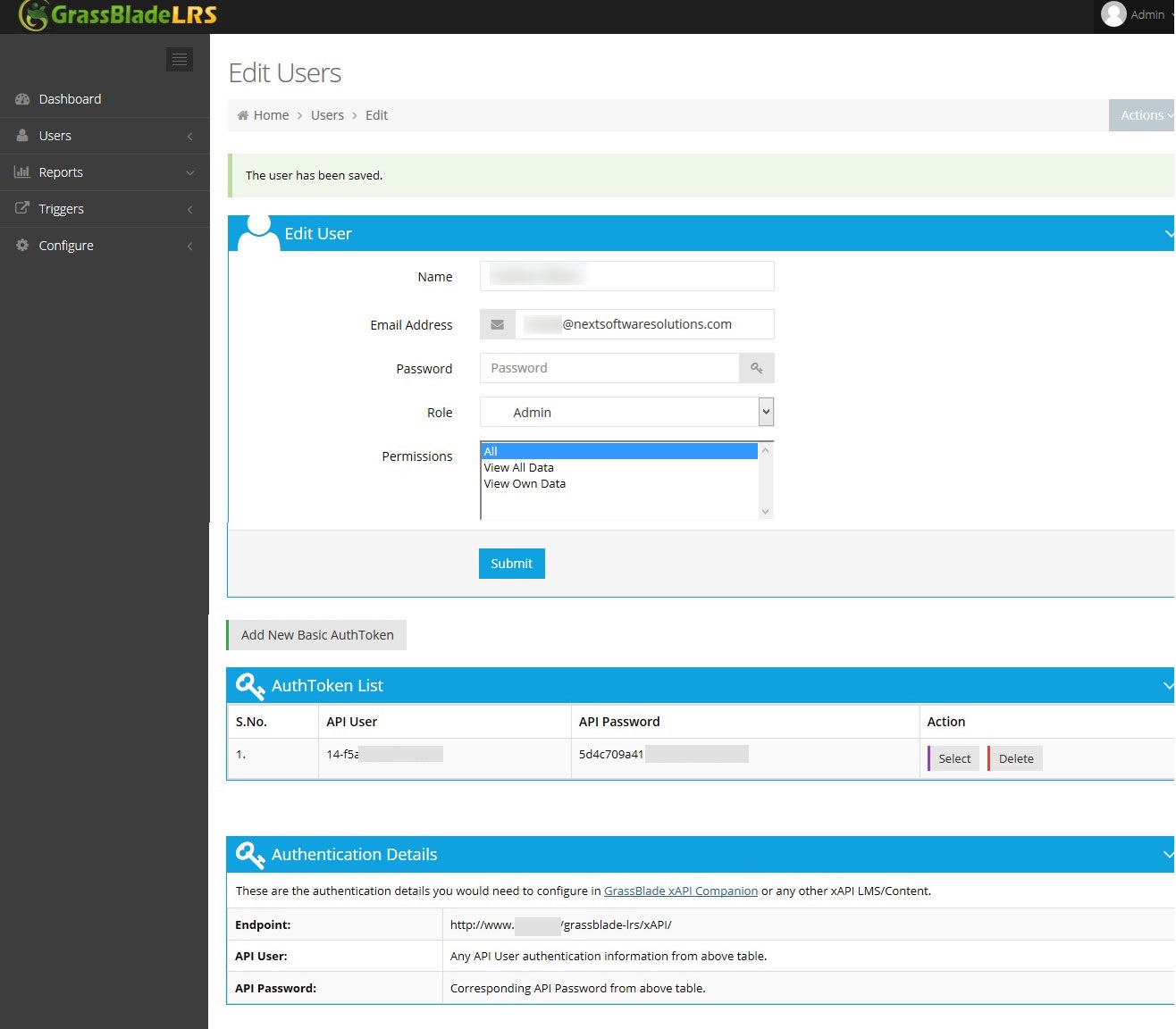
If you are using GrassBlade xAPI Companion for WordPress, you need to configure it in your GrassBlade Settings page on WordPress.
Settings (Language, Conformance, Logo and more)
If you want to change some of the LRS settings such as Language, Timezone, Compliance mode or Logo, visit GrassBlade LRS Settings page.
Next Steps: