
Follow these steps to add HTML5, xAPI, SCORM, or cmi5 content on the Tutor LMS lessons and quizzes using GrassBlade xAPI Companion plugin integration.
Requirements:
For Tutor LMS v3.3.0 and above
Lesson
Step 1:
Go to course edit page.
Step 2:
Navigate to the Curriculum tab.
Step 3:
Add new topic.
Step 4:
Now click the [+] Lesson Button to add new lesson.
Step 5:
Enter lesson name
Step 7:
Select an xAPI content from “Add xAPI Content” drop-down menu.
Step 8:
Save Lesson
Quiz Page
Step 1:
Go to course edit page.
Step 2:
Navigate to the Curriculum tab.
Step 3:
Add new topic.
Step 4:
Now click the [+] Quiz Button to add a quiz.
Step 5:
Enter quiz title.
Step 6:
Add a questions and click the Next button.
Why dummy question?
At least one question is required to save the quiz.
Step 7:
In the Settings tab, scroll down and find “Add xAPI Content” drop down.
Step 9:
Select an xAPI content from drop-down menu.
Step 10:
Click Save to save quiz.
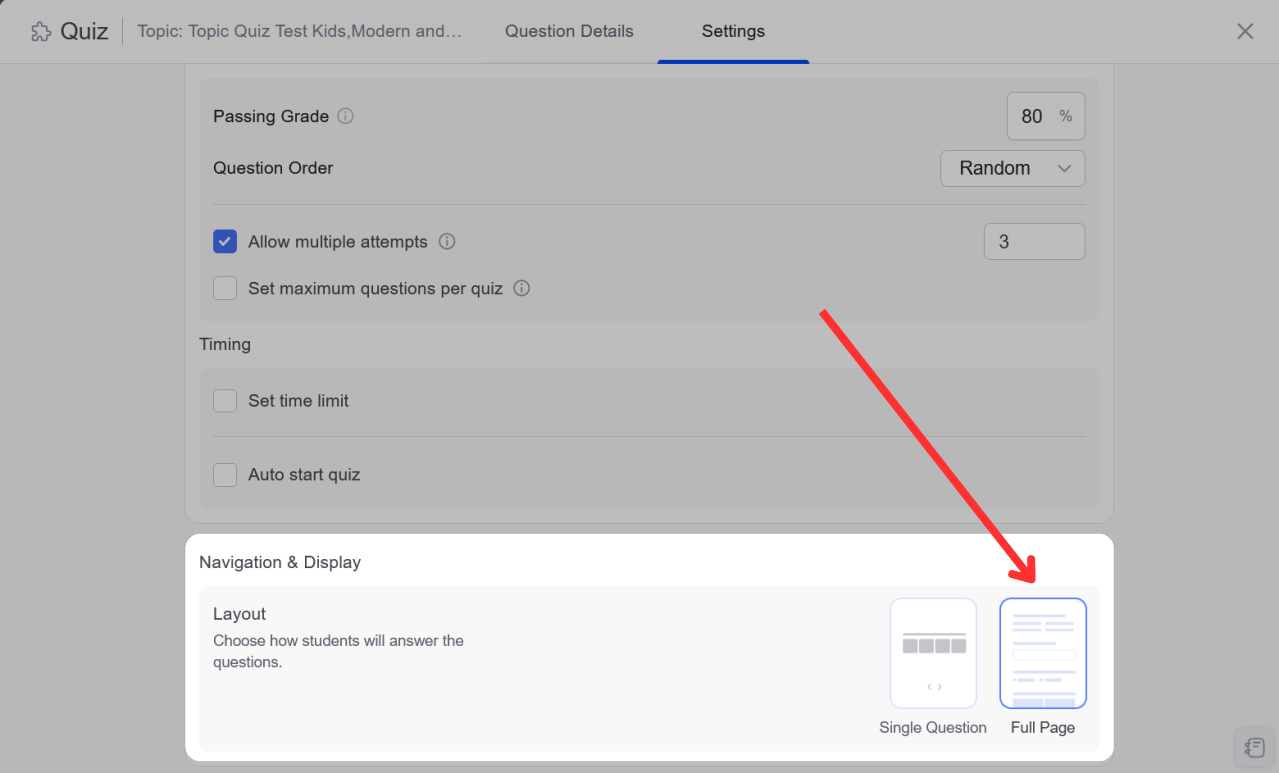
Note: For Tutor LMS v4.0 and above, It is recommended to select Full Page layout in the quiz settings page.
For Tutor LMS v3.0.0 to v3.2.3
Lesson Page
Step 1:
Go to course edit page.
Step 2:
Navigate to the Curriculum tab.
Step 3:
Add new topic.
Step 4:
Now click the [+] Lesson Button to add new lesson.
Step 5:
Enter lesson name then click save button. Now you are back to the Curriculum Page.
Step 6:
Click on the lesson you created to open Lesson Window.
Step 7:
Select an xAPI content from drop-down box at the bottom.
Step 8:
It will save automatically.
Quiz Page
Step 1:
Go to course edit page.
Step 2:
Navigate to the Curriculum tab.
Step 3:
Add new topic.
Step 4:
Now click the [+] Quiz Button to add a quiz.
Step 5:
Enter quiz title.
Step 6:
Add a questions and click the Next button.
Why dummy question?
At least one question is required to save the quiz.
Step 7:
Edit the quiz settings and click the Save button. Now you are back to the Curriculum page.
Step 8:
Click on the quiz you created to open Quiz Window.
Step 9:
Select an xAPI content from drop-down box at the bottom.
Step 10:
It will save automatically.
For Tutor LMS v2.7.7 or below
You can follow the steps given below to add HTML5, xAPI, SCORM, or cmi5 content on the Tutor LMS lesson and quizzes.
Lesson Page
If there is no text in the Lesson Content field, then the subscriber role users won’t see the xAPI Content, please add [grassblade] in the Lesson Content field.
Step 1:
Go to Course Edit Page.
Step 2:
Add New Topic
Step 3:
Click on the [+] Lesson icon to Add a Lesson
Step 4:
Add the [grassblade] shortcode in the Lesson Content field.
Step 4:
Scroll down until you see Add xAPI Content
Step 5:
Click the Select Content option to add content to this lesson.
(IMPORTANT: This cannot be blank)
Step 6:
Click the Update Lesson button to save.
Quiz Page
Step 1:
Add a quiz.
Step 2:
Go to Quiz Settings
Step 3:
Scroll down until you see Add xAPI Content option.
Step 4:
Click the Select Content option to add xAPI Content to this quiz.
Step 5:
Click the Save button to save the quiz.
If you’re facing any issues while using this feature, feel free to contact us.