
To Access GrassBlade LRS settings follow these steps:
- In the sidebar menus click on Configure to expand it.
- Click on the Settings sub-menu to open Settings page.
The Settings page contains many section and tab lets look at them one by one.
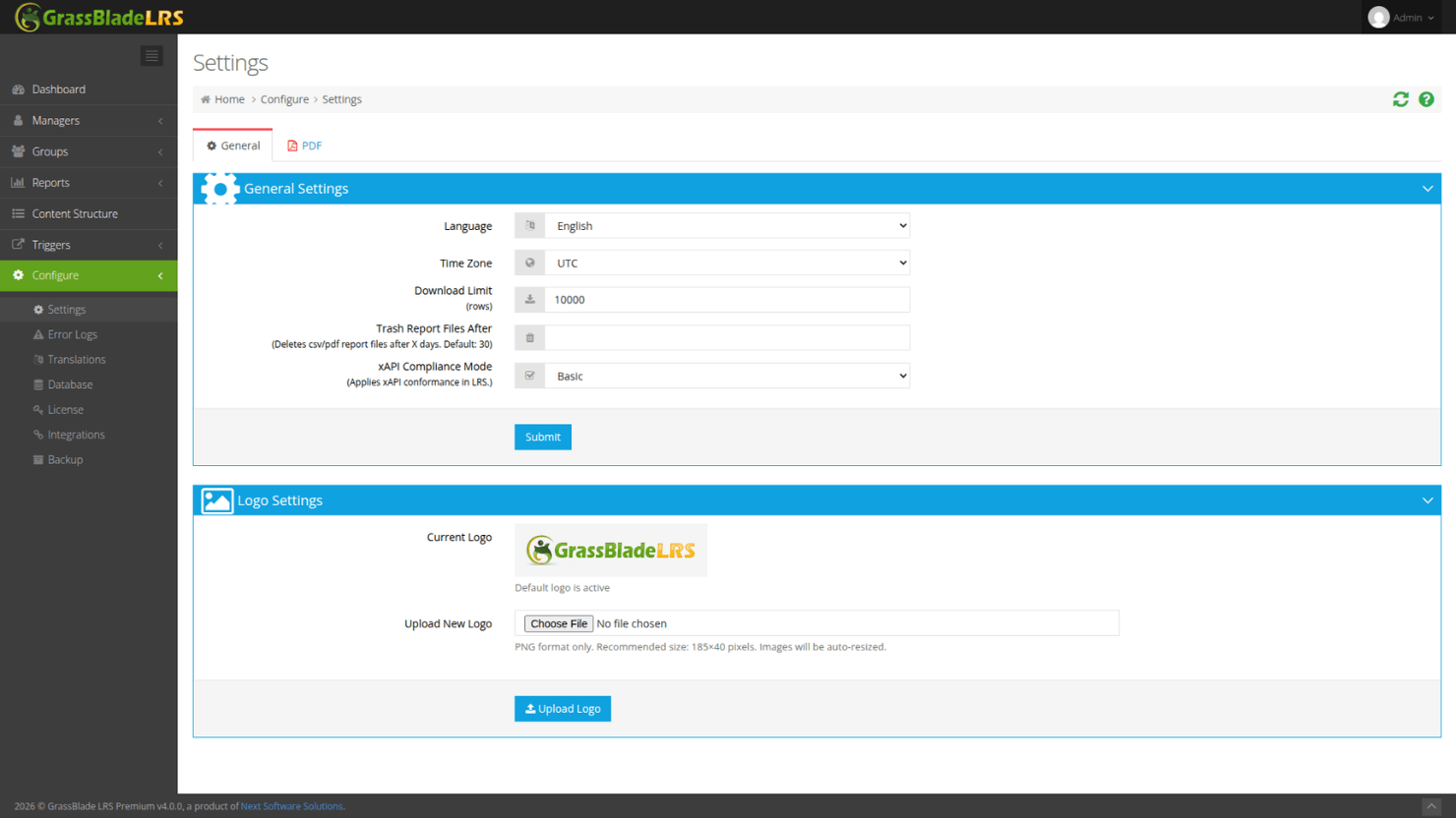
General Settings
Language
You can choose between English, Chienese, French, German, and Português language which will be applied to LRS-wide texts.
Timezone
This drop down menu allow you to choose the correct Time Zone for your location.
Download Limit
Many reports in the GrassBlade LRS allow you to download CSV or PDF, This Download Limit field allow you to set number of rows you want to download. To learn more about report download check Download Filtered Report page.
Trash Report Files After
This input field lets you set number of days, after which report download files from the server will be deleted. Check Download Filtered Report page to learn how report download works.
xAPI Compliance Mode
You can choose between Basic, Strict and Logs Only conformance modes as per your use case. These modes allows GrassBlade LRS to follow xAPI standard at certain level.
- Basic: This option applies basic check to validate requests and incoming statements while ignoring some of non compliant components.
- Strict: This mode strictly validates xAPI statements and rejects statements if it doesn’t follow the xAPI standard as specified in the specification.
- Logs Only: This mode accepts statements like the basic mode but filters non compliant statements like strict mode and logs them in error instead of rejecting them.
Logo Settings
you can replace the GrassBlade LRS logo in the LRS following these steps:
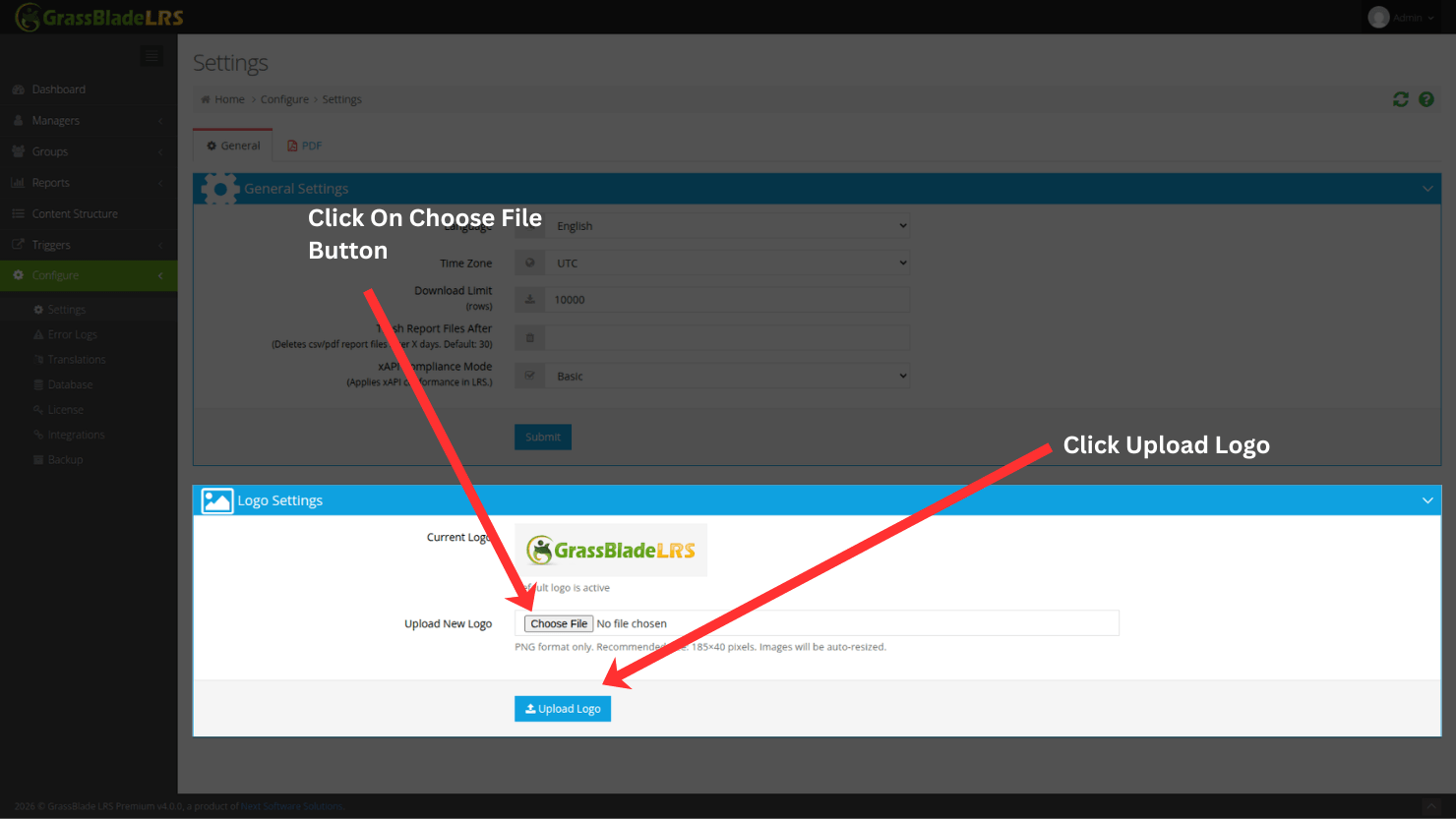
- In the settings page go to the Logo Settings section.
- Click on the Choose File button.
- From the file dialog, select your logo image file.
- Click on Upload Logo button.
Note: Logo image file should be PNG format. Image resolution is recommended to be 185×40, though image is resized automatically.
PDF Tab
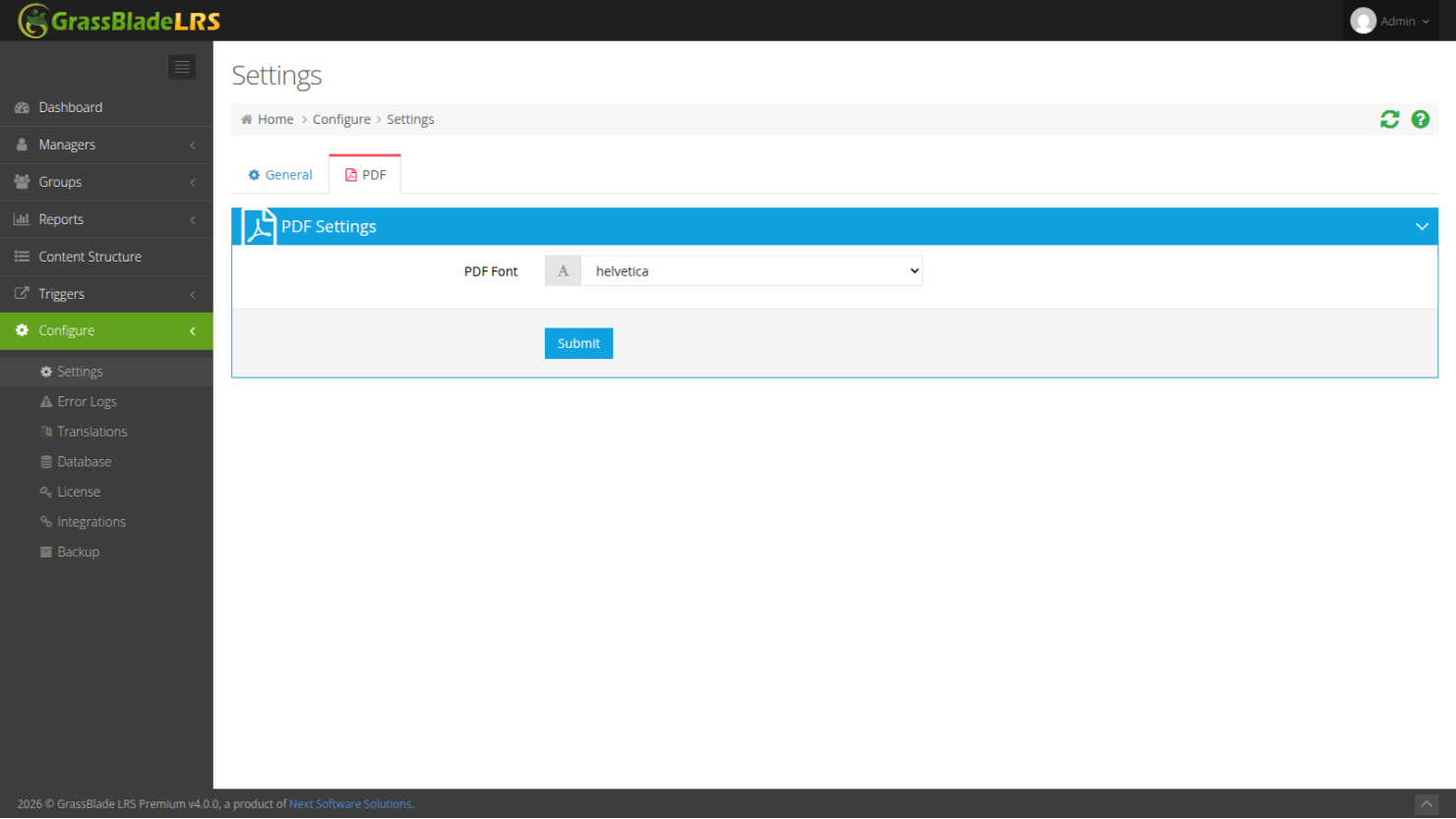
This tab in settings page currently contains only one option which is PDF Font. The PDF Font drop down menu provides more than 15 fonts to choose from. The selected font is used for rendering report’s PDF file download.