
Many reports in the GrassBlade LRS allow filter and download. Please follow the steps to download the filtered report from the GrassBlade LRS.
Step 1:
Go to a report page like Reports > Activity Stream.
Step 2:
Click on the filter icon to select the filters to generate report data.
Step 3:
Click the download icon to open the download popup.
To include the quiz answers in the report, please enable the “Include Sub Activities” option in the filters.
Step 4:
Enter the download limit as the number of rows you want to download from the recent activities.
Step 5:
Select the report type i.e PDF or CSV
Select Columns i.e Selected Columns or All Columns. (You can select desired columns from the Columns dropdown given beside the download icon.)
Step 6:
Click the download button to download the file.
Download History
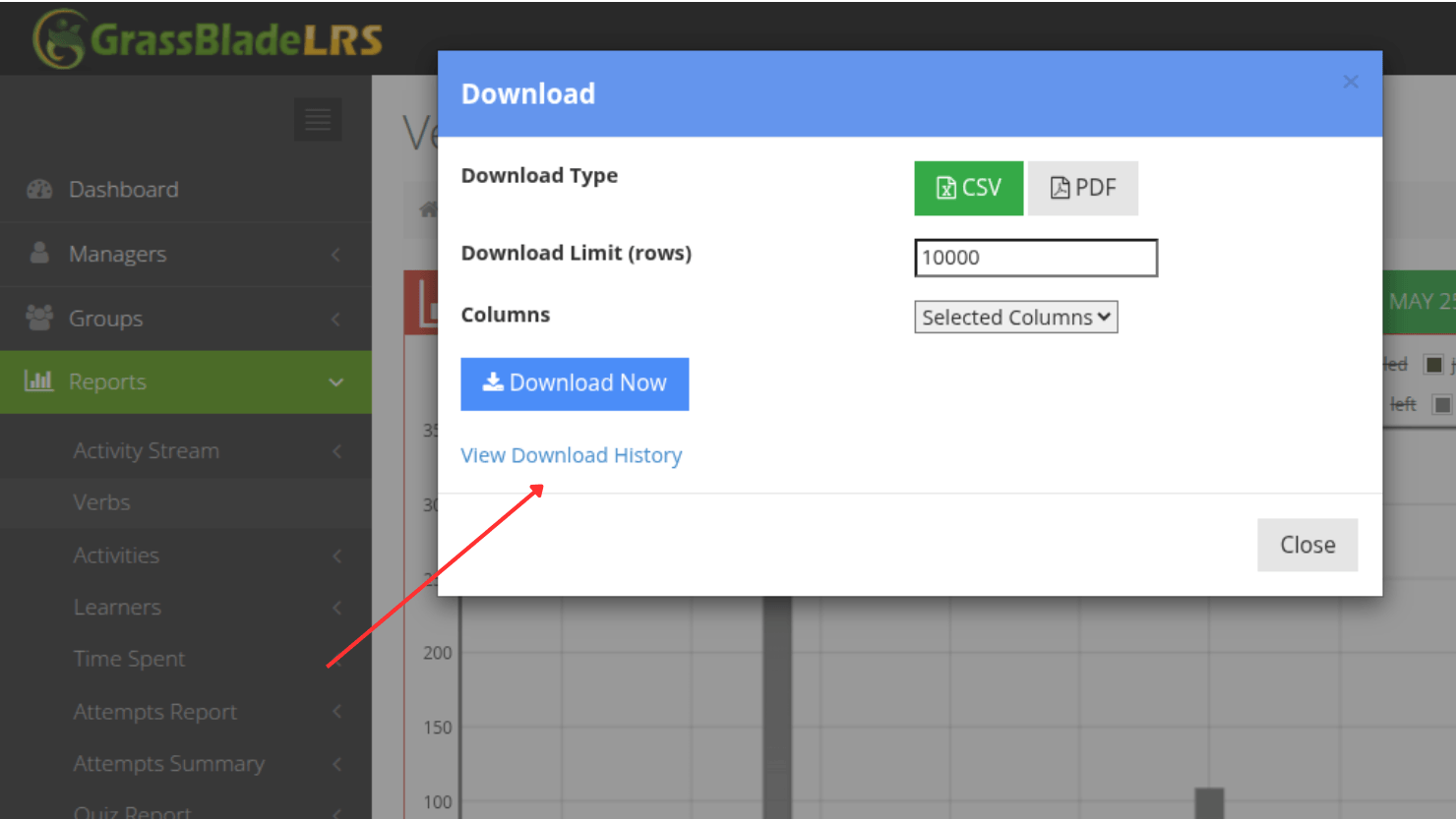
Both csv and pdf report downloads are stored in the download history page. Click the download icon to open the download popup and click on the “View Download History” link to open Download History page.
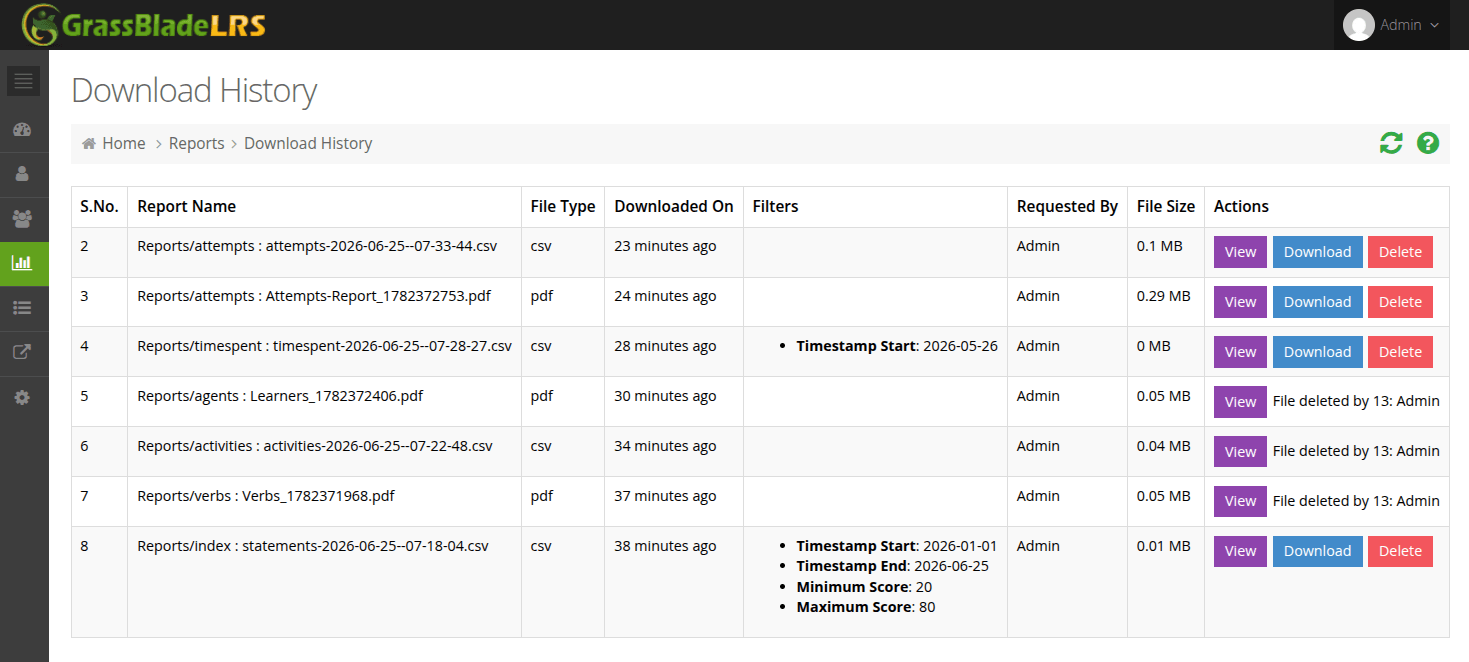
Download History page lists all the downloads and provide you three buttons with each downloaded item: View, Download and Delete.
- View button will redirect you to the report page associated with the downloaded file, along with all the filter applied.
- Download button will allow you to re-download the report.
- Delete button will delete the downloaded file but it’s view button feature will still be there.
Automatically Delete Report Files
You can trash piling up report files after certain amount of days automatically. To use this feature follow these steps:
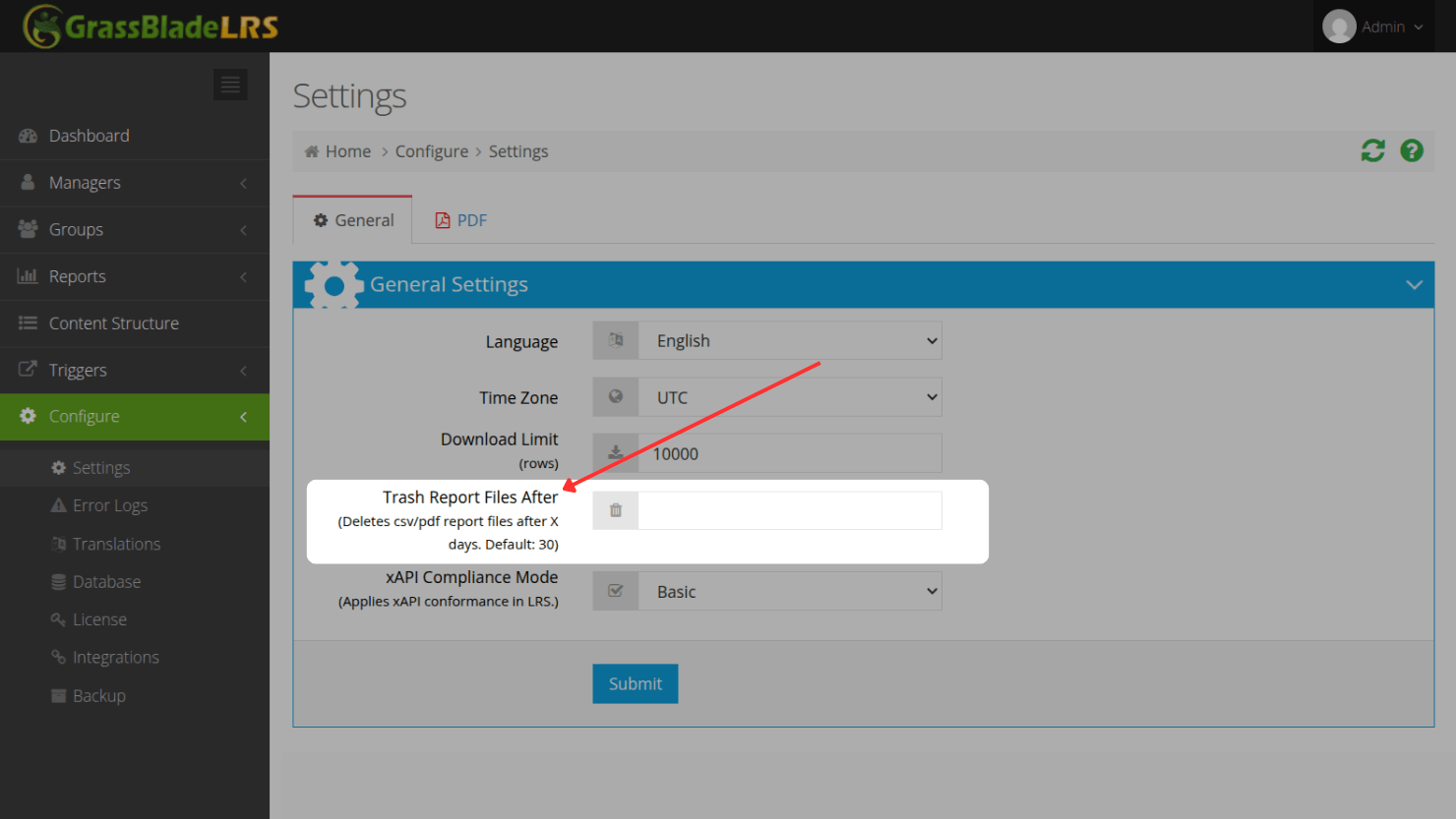
- Click on the Configure menu in the sidebar to expand it.
- Click on the Settings, it will open Settings page.
- Navigate to General Settings.
- Look for “Trash Report Files After“.
- Enter number of days you want files to persist.
File will delete after set number of days.
Try these:
If you’re facing any issues while using this feature, feel free to contact us.